Every alert.
One queue.
Zero blind spots.
The AWE Initiative Event Processing module is the control room's command surface — every alarm, SOS, crime report, and system trigger arrives here, from any channel, and is triaged, mapped, resourced, and resolved without ever leaving one screen.
Event Processing at a glance
One live queue that ingests every alert from every channel, and carries it from first ring to final resolution.
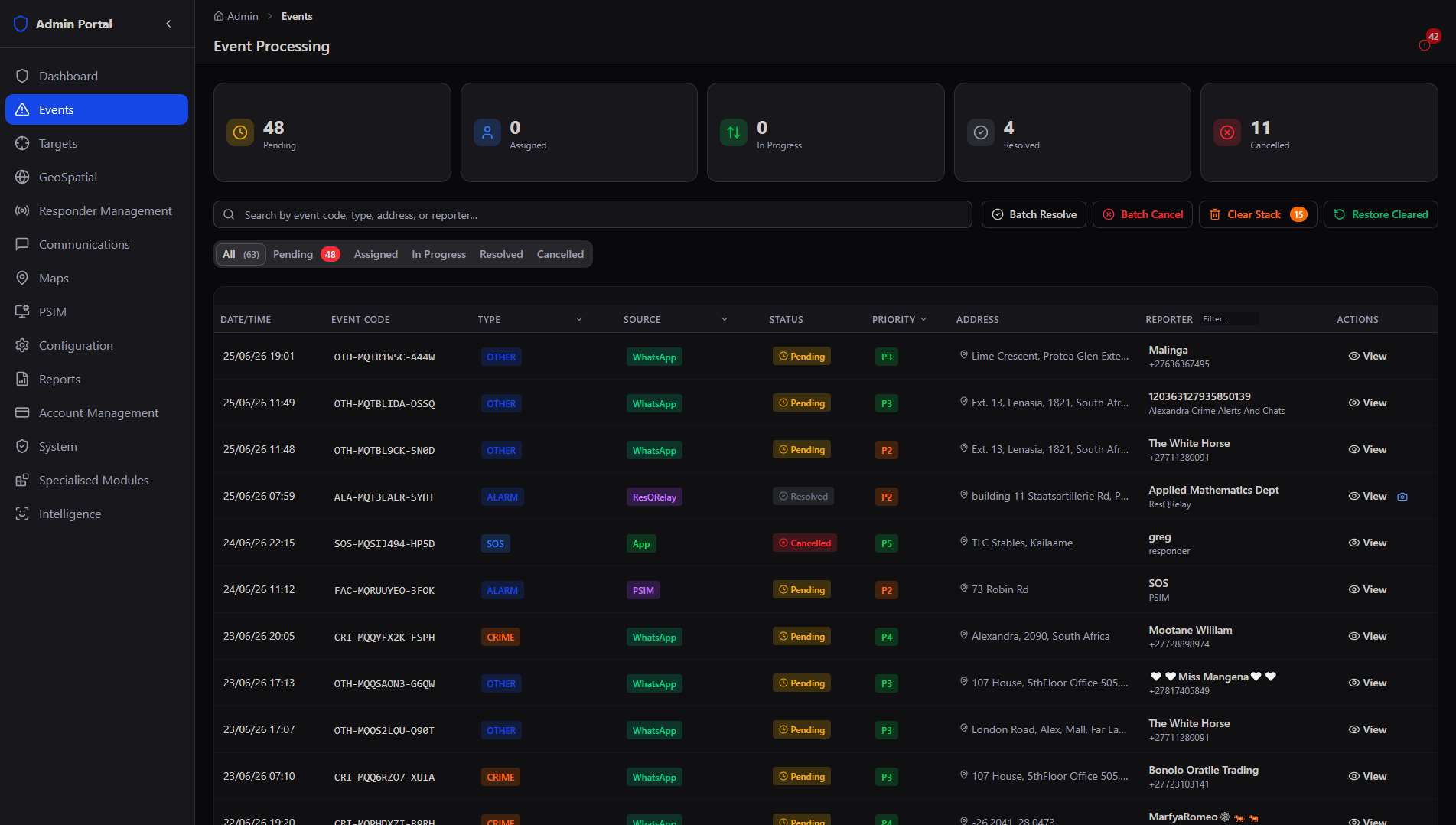
Built for volume. The dashboard shown above is a live control room in operation — 48 pending events, 11 cleared today, and a running stack of assigned and in-progress cases. Event Processing is designed to stay legible whether you're handling five events a day or five hundred.
Event Queue & Triage
Every alert, from every source, sorted and filtered into a single actionable stack.
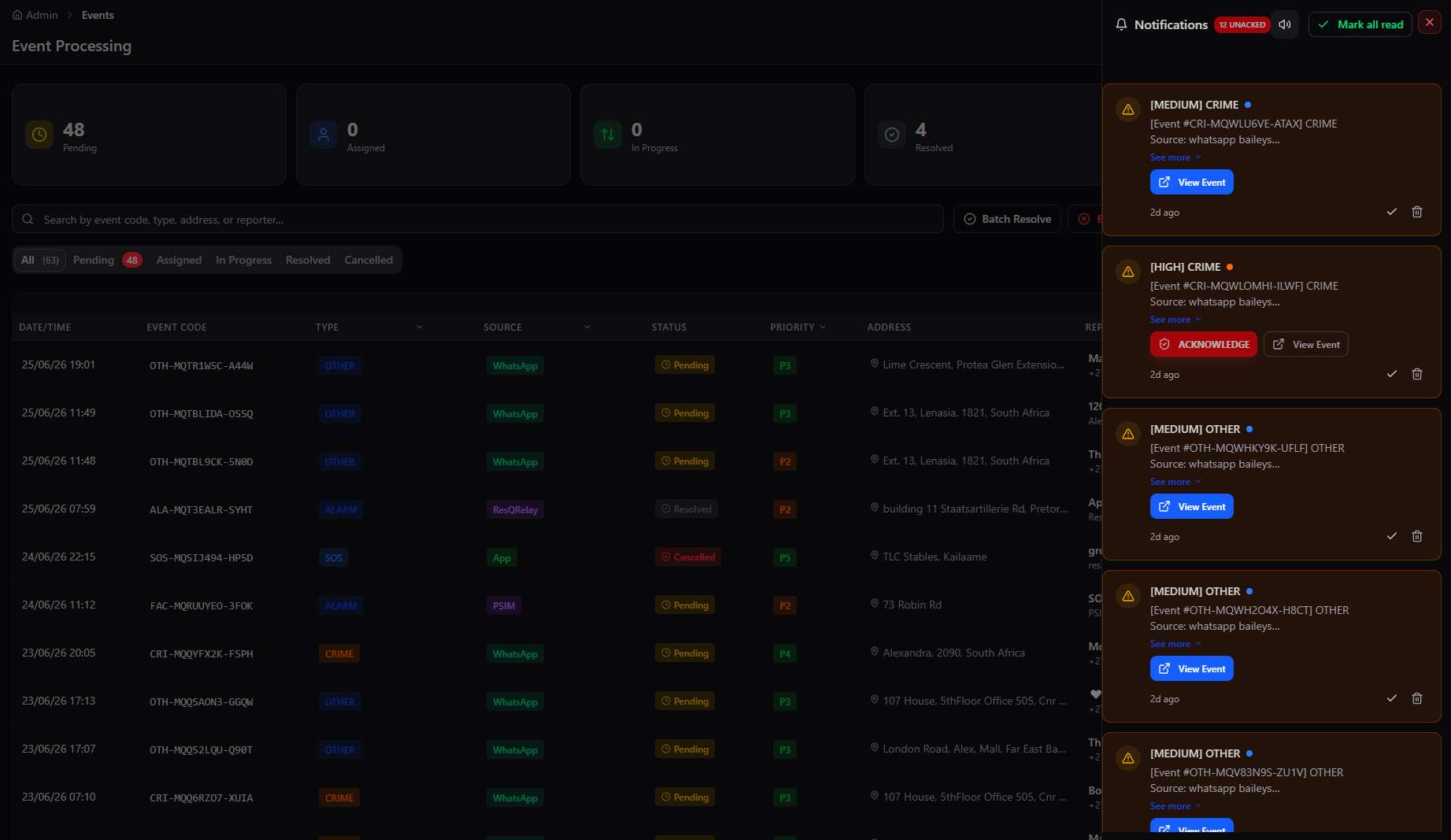
The Event Queue is the front door of the control room. Every alarm, panic trigger, crime report, or system alert — regardless of where it came from — lands here first. Operators triage from this single table: what it is, how urgent it is, where it's from, and what needs to happen next.
Status counters
| Counter | What it tracks | Operator action |
|---|---|---|
| Pending | Received, not yet assigned to a responder | Triage now |
| Assigned | A responder has been allocated but has not started | Monitor |
| In Progress | A responder is actively working the event | Monitor |
| Resolved | Closed with a recorded outcome | Archived |
| Cancelled | Closed without dispatch — duplicate, false alarm, etc. | Archived |
Filter by Type, Source, and Priority
Three dropdown filters sit above the queue table, letting an operator narrow hundreds of live events down to exactly the slice they need — every fire alarm from the last hour, every P1 from a specific community, every SOS regardless of status.
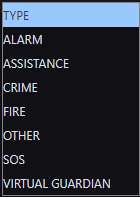
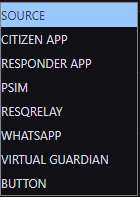
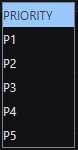

Triage is the job. With 48 pending events on a busy day, the queue's filters and priority sort are what let a small control room team keep pace — P1 SOS alerts always surface above P5 routine notices, no matter what else is coming in.
Event Details & Response Coordination
Everything an operator needs to act on a single event — location, facilities, and available responders in one screen.
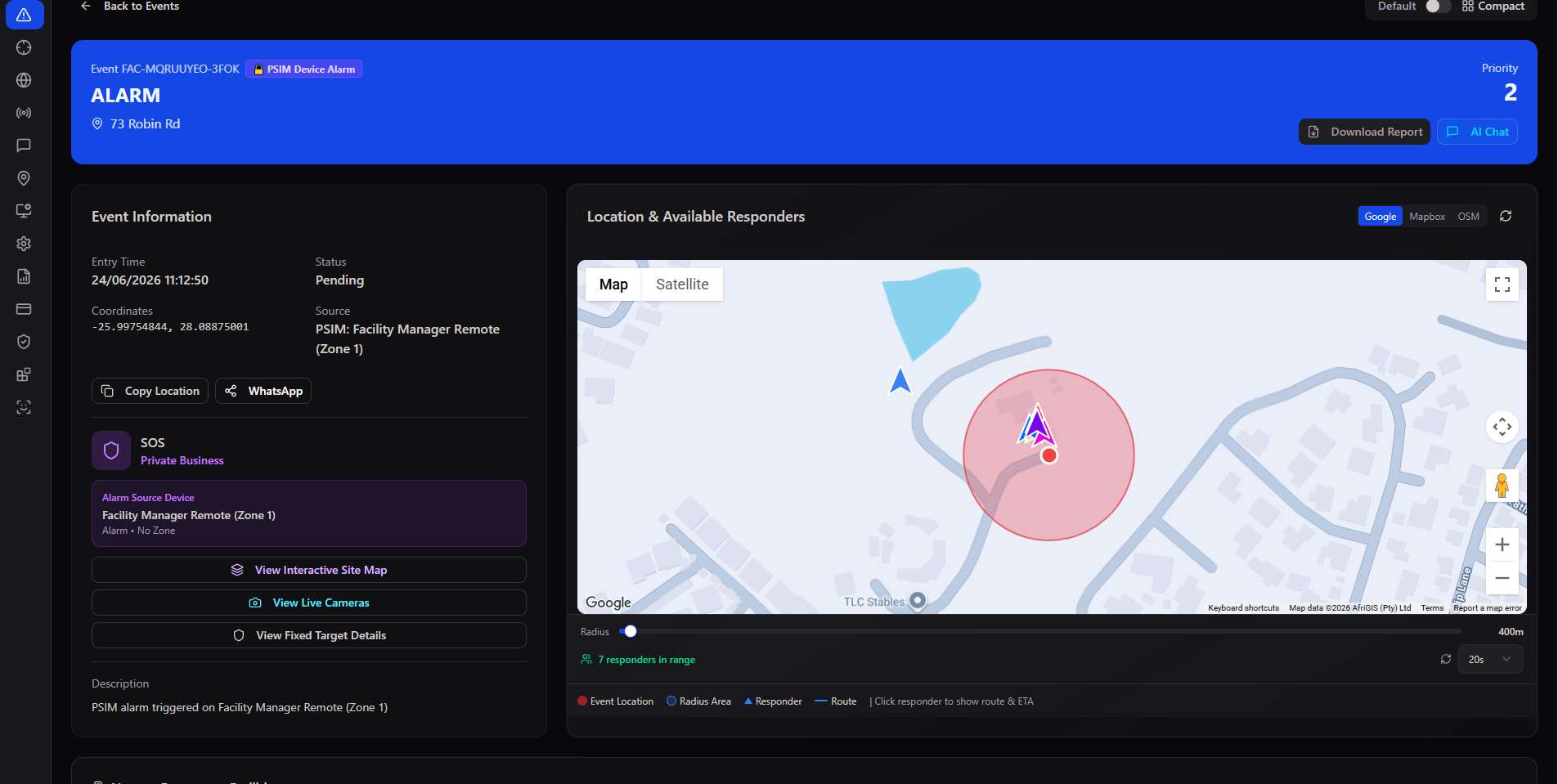
Opening an event surfaces a dedicated detail view built around one question: what's the fastest, safest way to respond? Event information sits beside a live map, and nearby emergency facilities sit beside a ranked list of available responders — so dispatch decisions take seconds, not minutes.
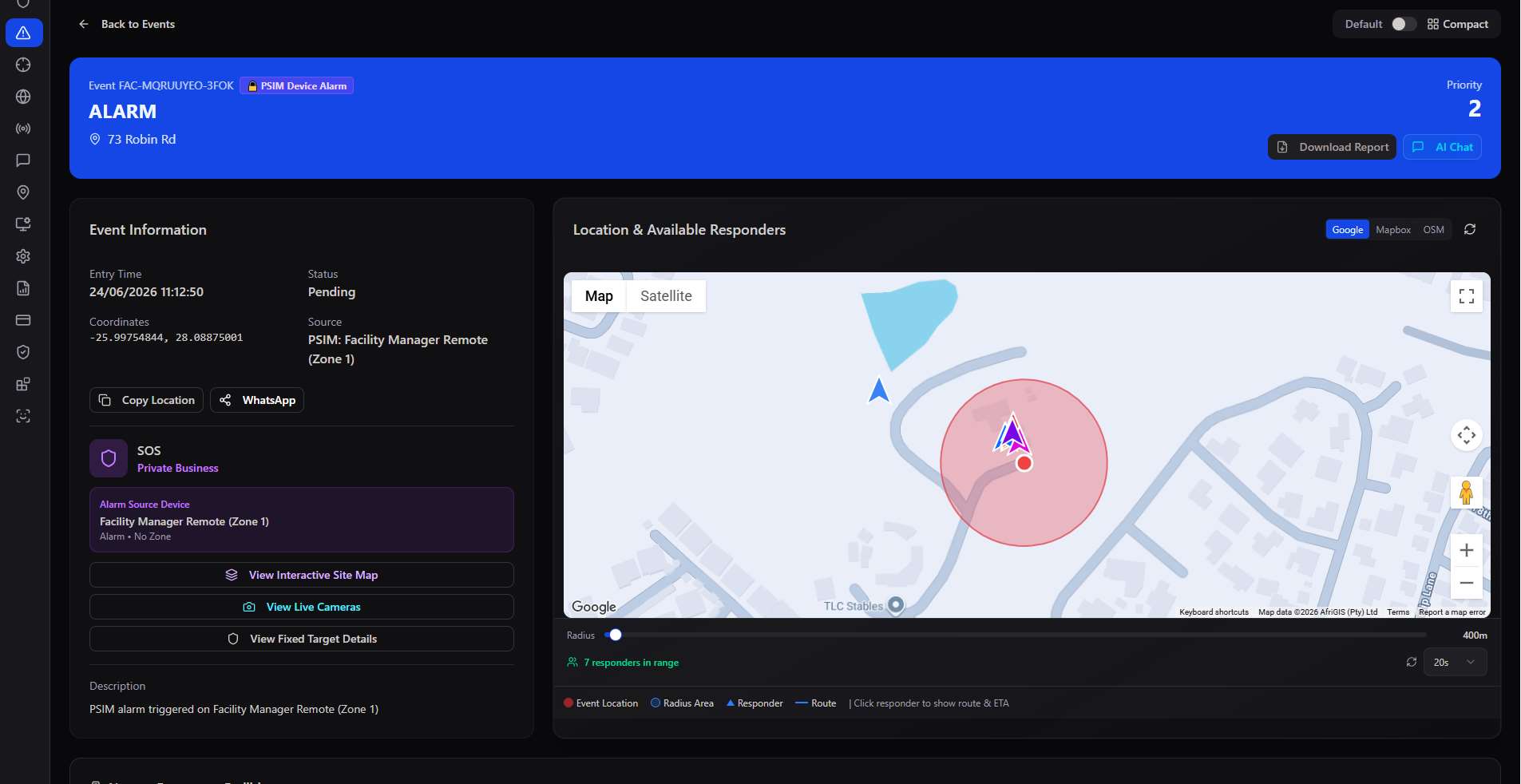
Nearest facilities and available responders
Below the map, the detail view ranks the nearest emergency facilities — hospitals, police stations, fire stations — by distance, and lists every available responder sorted by proximity. An operator assigns directly from this list, and the event's Current Assignments panel updates live.
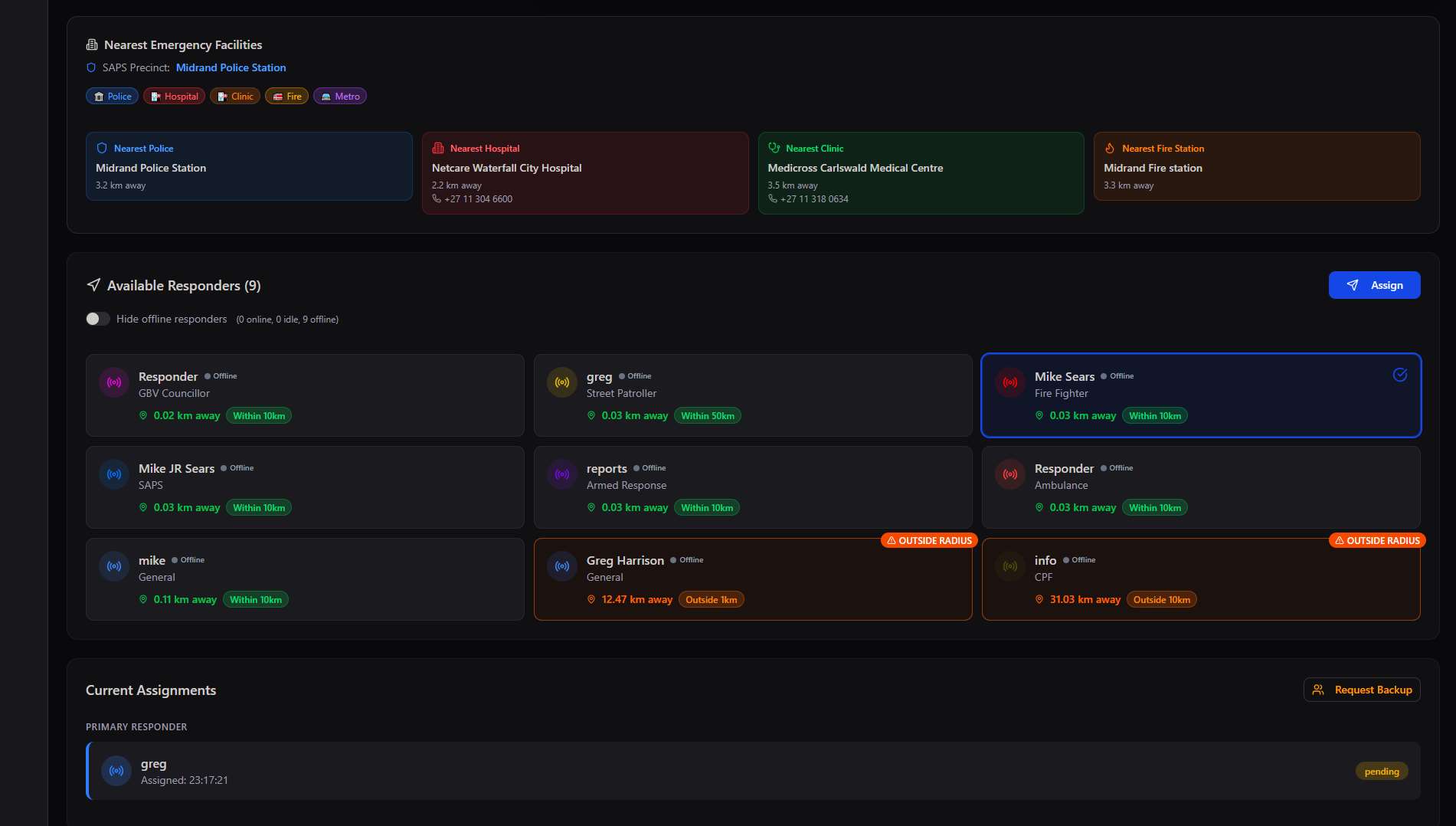
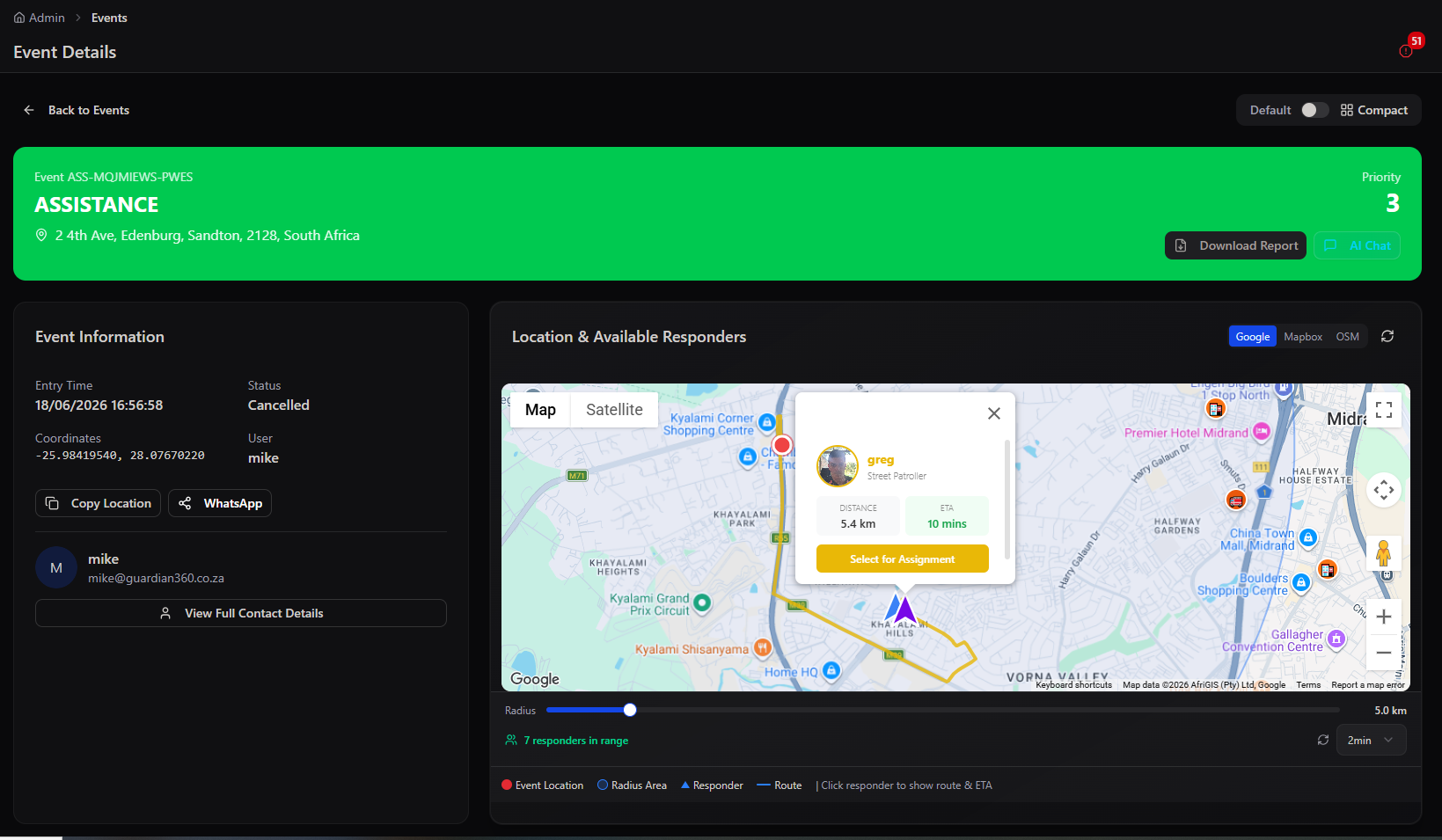
One screen, one decision. The whole point of the Event Details layout is to remove the need to cross-reference a separate map, a separate roster, and a separate facilities list. Everything relevant to "who do I send, and how fast can they get there" is already on screen.
Multi-Channel Intake & AI Assist
Seven ways an event can reach the queue — and an AI chat layer that helps triage the moment it arrives.
Not every alert arrives the same way. A resident might trigger a panic button, a guard might log an incident through the Responder App, a control room might get a PSIM alarm signal, or a citizen might simply message on WhatsApp. Event Processing normalises all seven intake channels into the same queue, the same detail view, and the same resolution workflow.
Intake sources
Fixed Target Profile — SOS devices
Every hardware panic button and fixed SOS device is registered against a Fixed Target Profile: the address, the primary contact, the community it belongs to, and a risk level. The moment that device fires, the operator already knows exactly who and where they're dealing with.
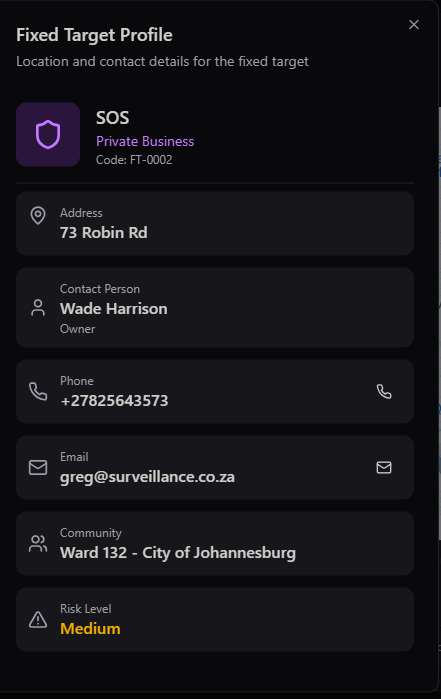
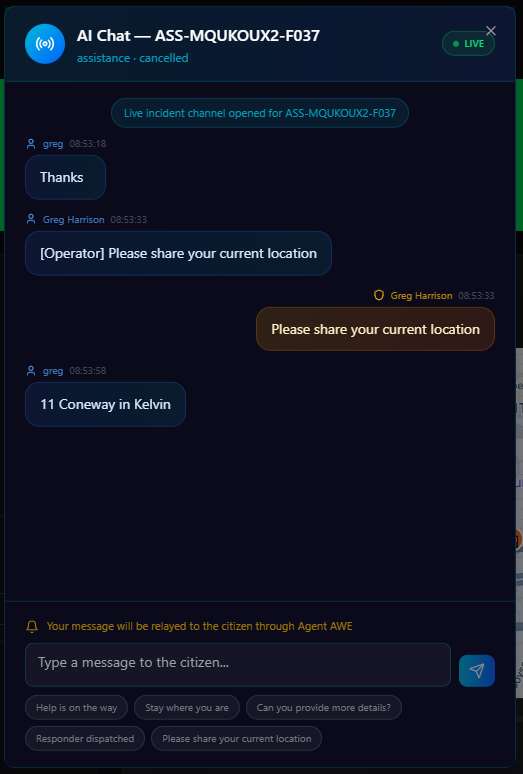
One queue for every channel. A community with hardware panic buttons at 40 homes, a citizen-facing app, and a WhatsApp hotline all feed the exact same Event Queue. No operator needs to watch four separate systems — Event Processing merges them into one.
Site Intelligence — CCTV & Maps
See the exact site an event is coming from — satellite maps and live camera feeds, without leaving the event.
Where possible, Event Processing pulls in visual context from the physical site itself. PSIM Site Maps give a satellite-level view of the property with named zones and buildings; Live View pulls in the actual camera feeds covering that location — so an operator can visually confirm what's happening before dispatching anyone.
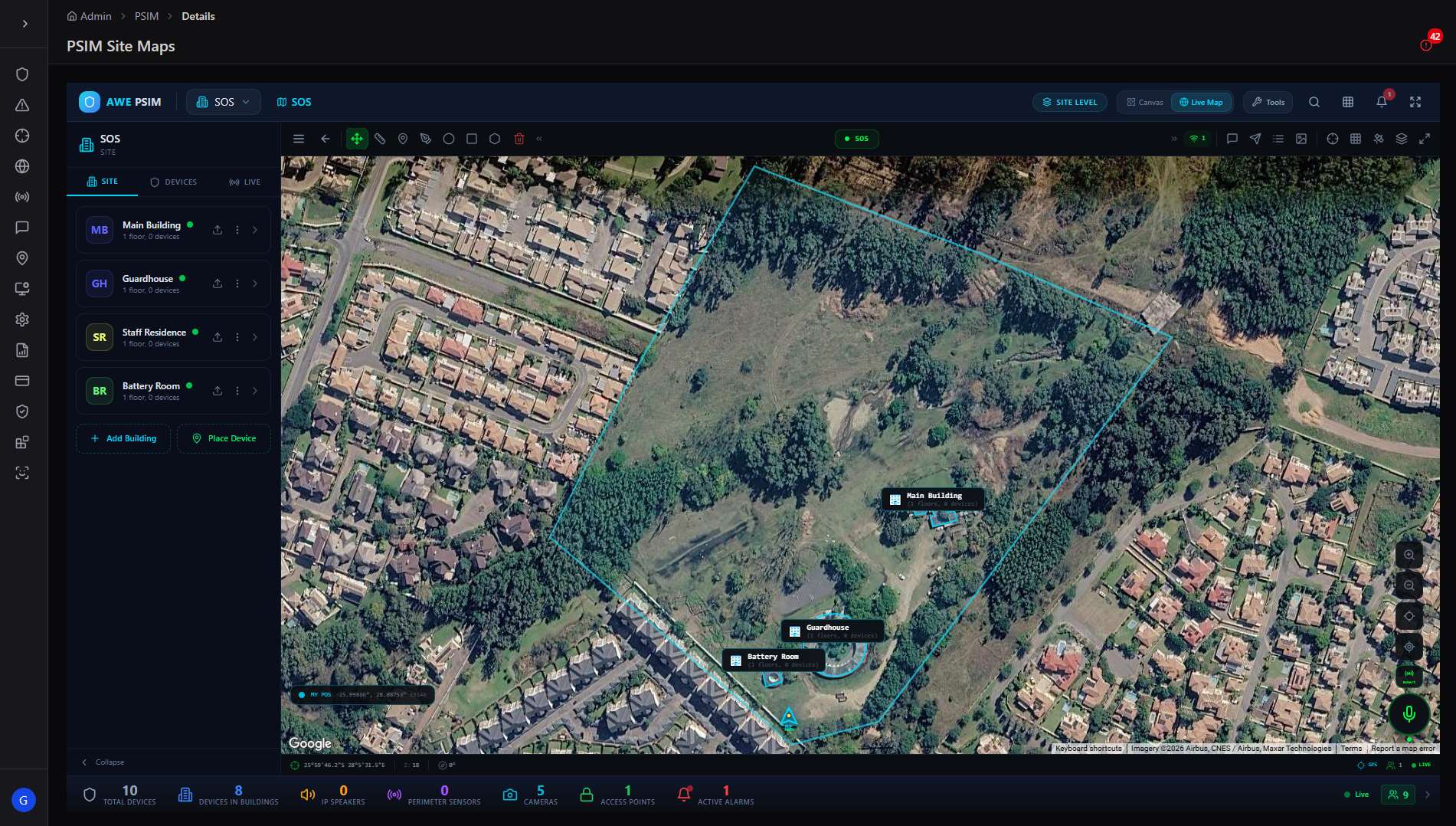
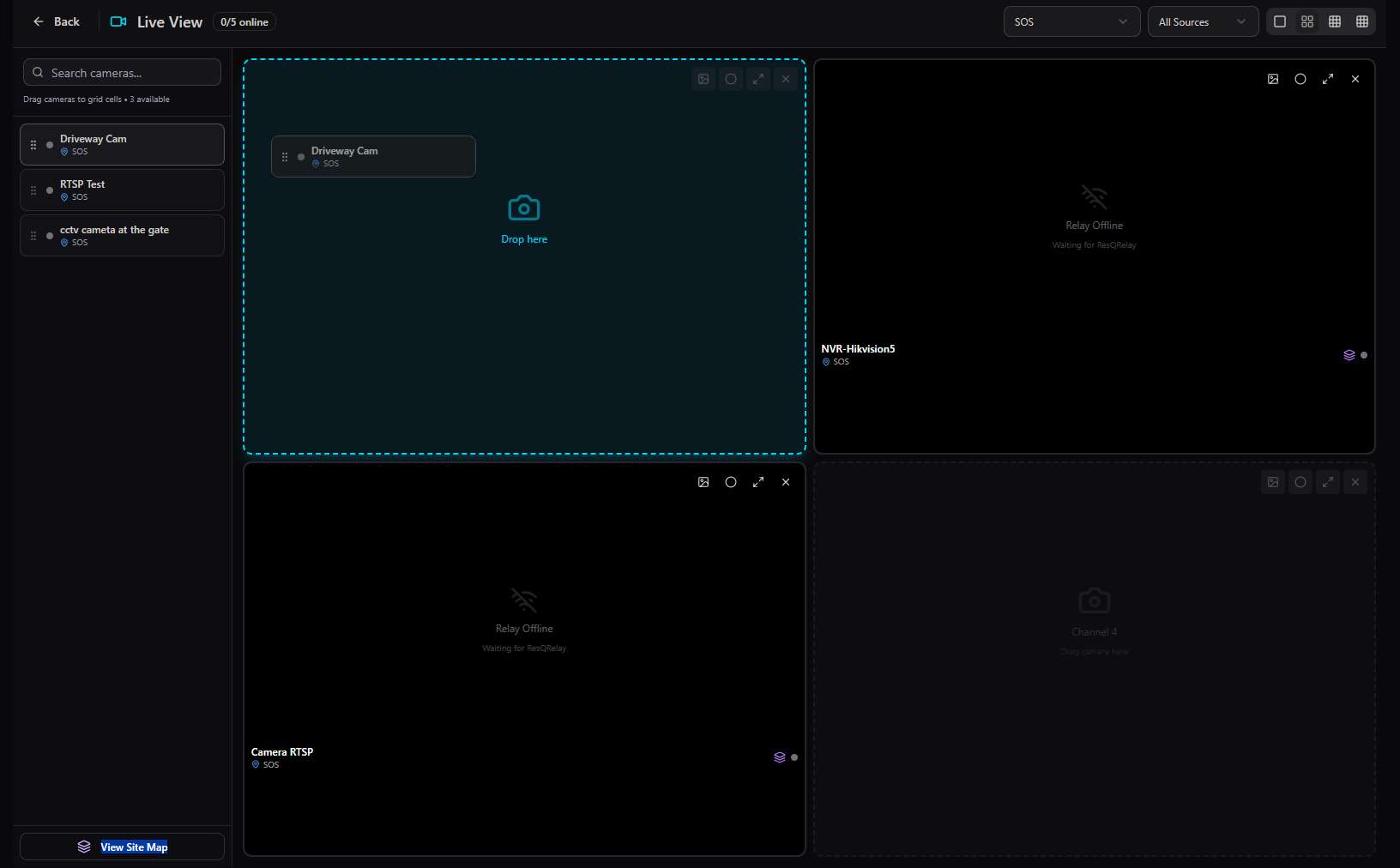
Verify before you deploy. A PSIM alarm at a warehouse can be visually confirmed on the site's own cameras in seconds — separating a real intrusion from a false trigger before a responder is ever dispatched.
Community & Target Contacts
Every person tied to the location — ready to notify, or to hand the full event report to, in one click.
Every event carries the community and fixed-target contacts relevant to its location — the property owner, tenant, or on-site contact. Operators can notify them directly, or forward the complete event report so a client, security manager, or community leader has the full picture without a phone call.
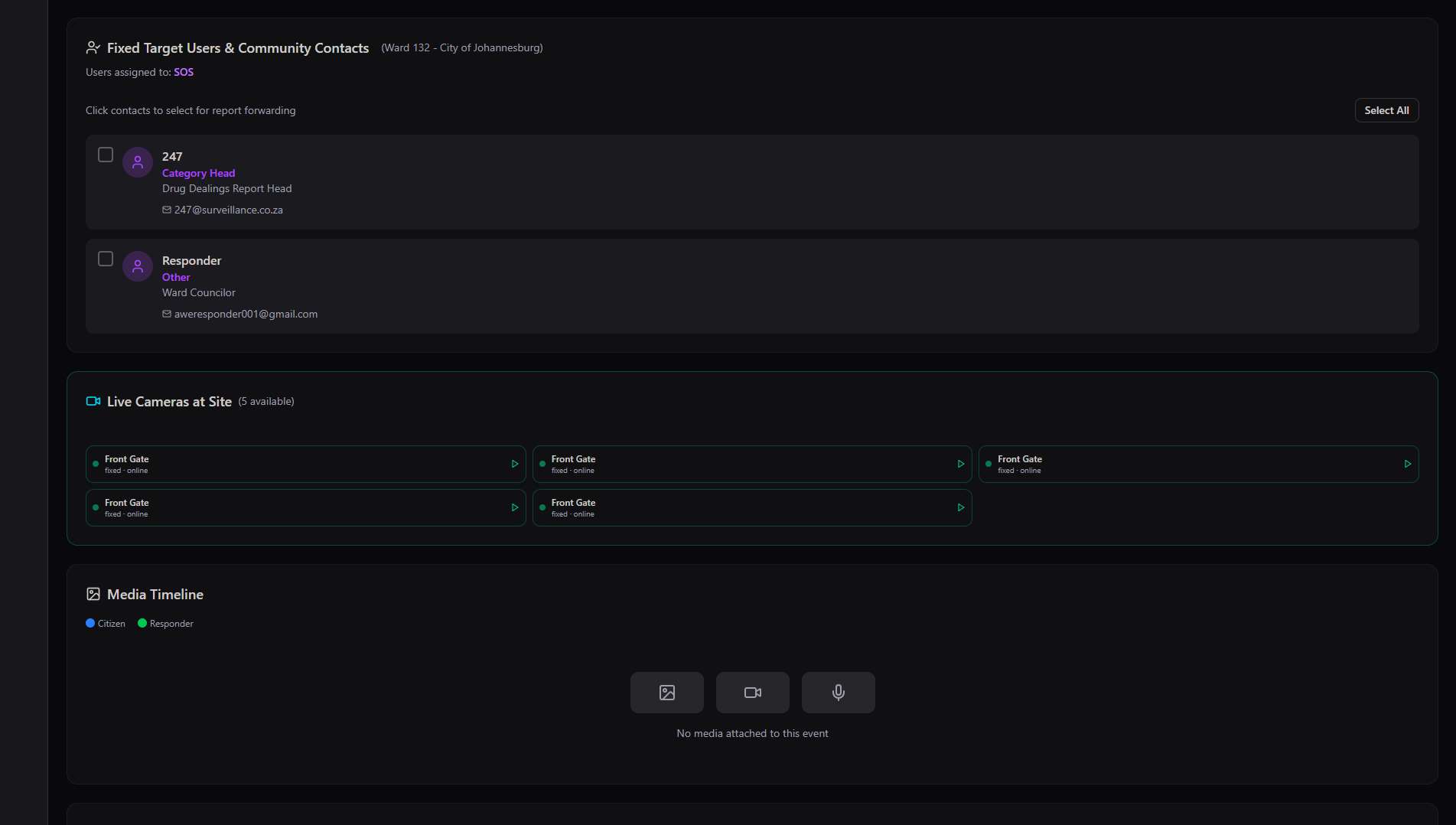
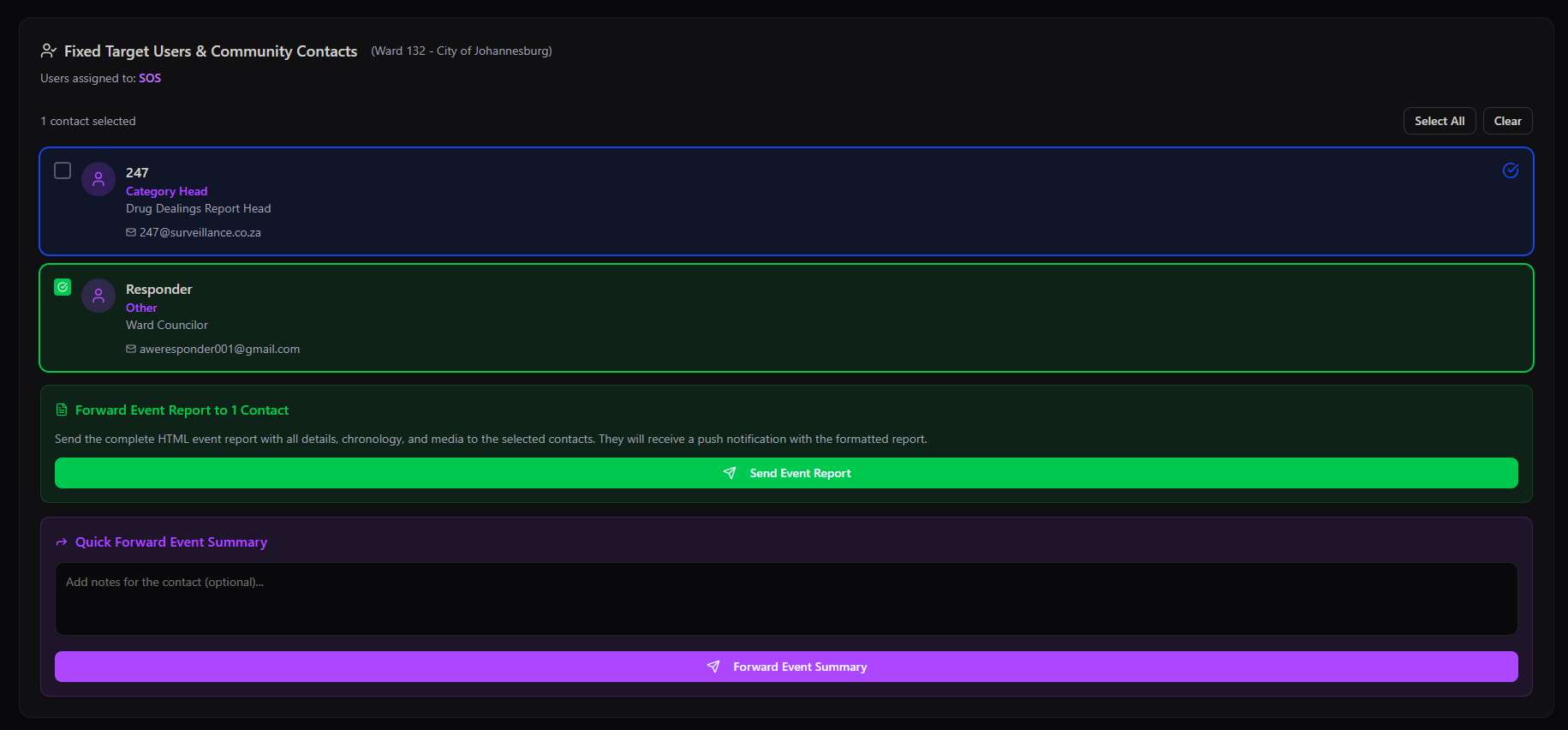
Nobody left in the dark. When an alarm fires at a client site, the property owner, the on-duty manager, and the community's CPF contact can all receive the same event summary within seconds of resolution — with zero manual retyping by the operator.
Evidence, Notes & Timeline
Every note, every camera reference, and every submitted photo — assembled into one chronological record.
As an event progresses, Event Processing builds a running record of everything that happens to it: free-text operator notes, an automatic chronology of status changes, and a media timeline of every photo submitted by a responder or citizen. Together they form the audit trail behind every resolved event.
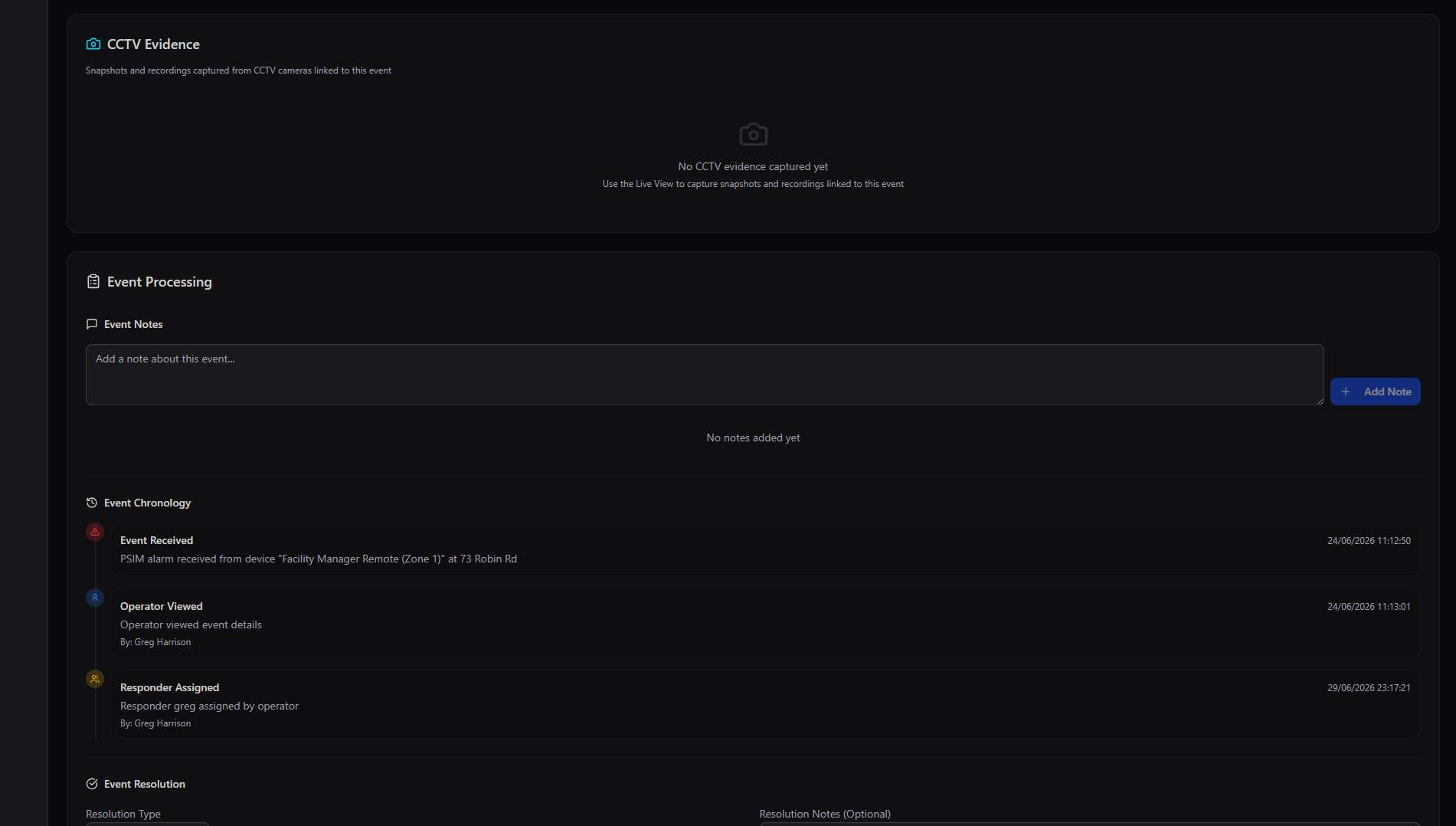
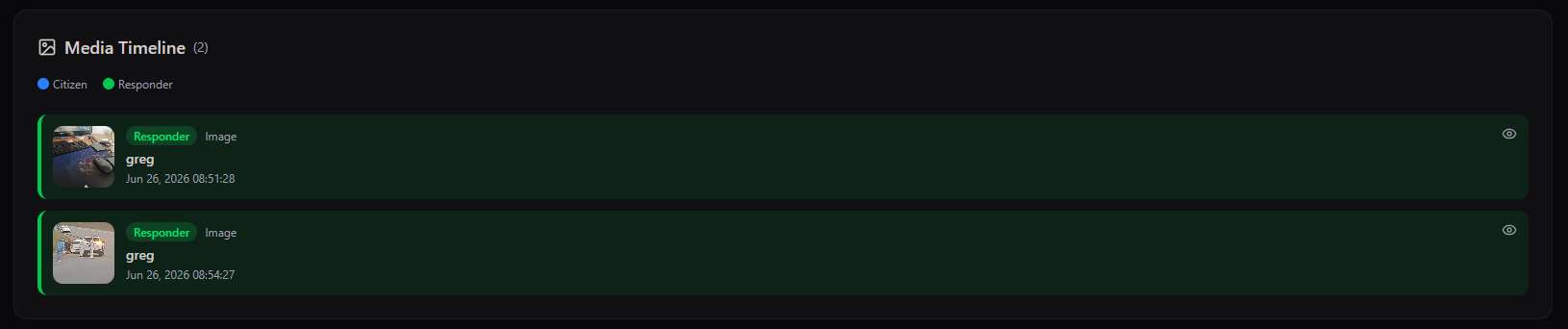
A complete record, automatically. The chronology and media timeline build themselves as the event moves through the queue — an operator never has to manually reconstruct "what happened and when" for a post-incident review.
Batch Operations
Resolve, cancel, clear, or restore events in bulk — because triage at scale can't happen one row at a time.
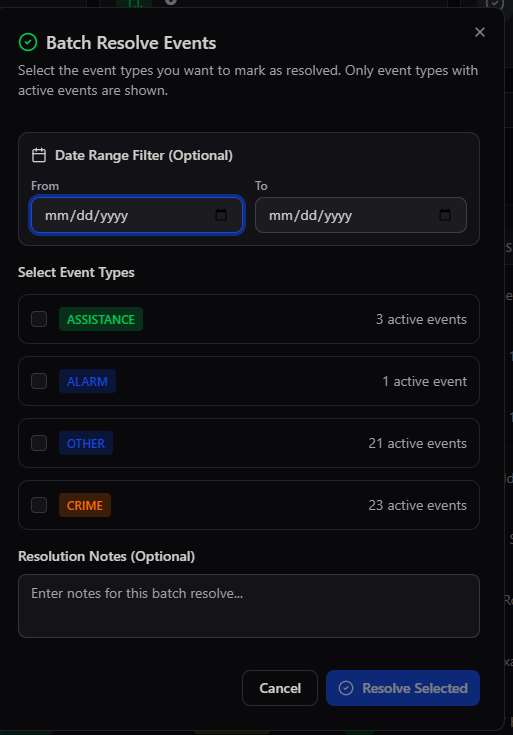
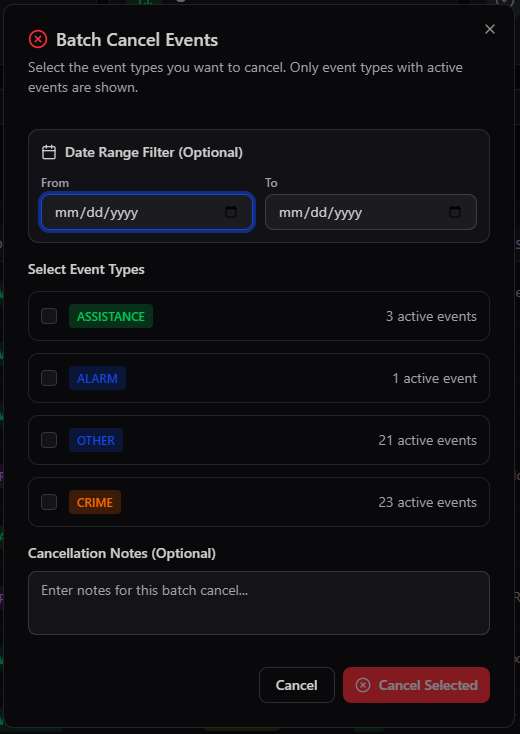
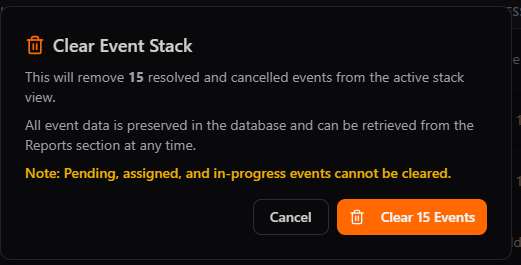
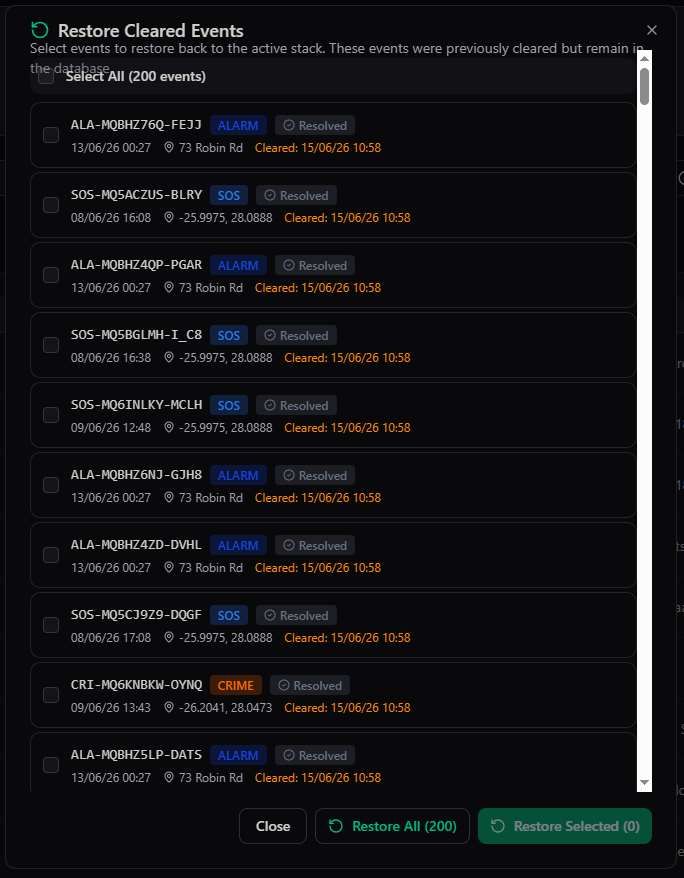
Some situations call for acting on many events at once — clearing a backlog of duplicate false alarms, cancelling a batch of test events, or tidying up the active view after a busy shift. The batch toolbar sits above the queue and lets an operator apply one action across a filtered set of events, with a confirmation step before anything is changed.

Batch actions at a glance
| Action | Applies to | Data impact |
|---|---|---|
| Batch Resolve | Active events matching a type + date filter | Marked resolved with a shared note |
| Batch Cancel | Active events matching a type + date filter | Marked cancelled with a shared note |
| Clear Stack | All resolved and cancelled events | Hidden from the active view; fully retrievable |
| Restore Cleared | Previously cleared events, selected individually or all | Returned to the active stack view |
Nothing is ever deleted. Clearing the stack only removes resolved and cancelled events from the active view — every record is preserved in the database and remains fully retrievable from Reports at any time.
Backup & Escalation
When one responder isn't enough, pull in reinforcements with a single stunning alert.
Some events escalate — a suspect is armed, a scene is larger than expected, or the assigned responder calls for support. Request Backup Responders lets an operator select additional available responders and push them an urgent, high-visibility alert with full event context, without re-dispatching the entire event from scratch.
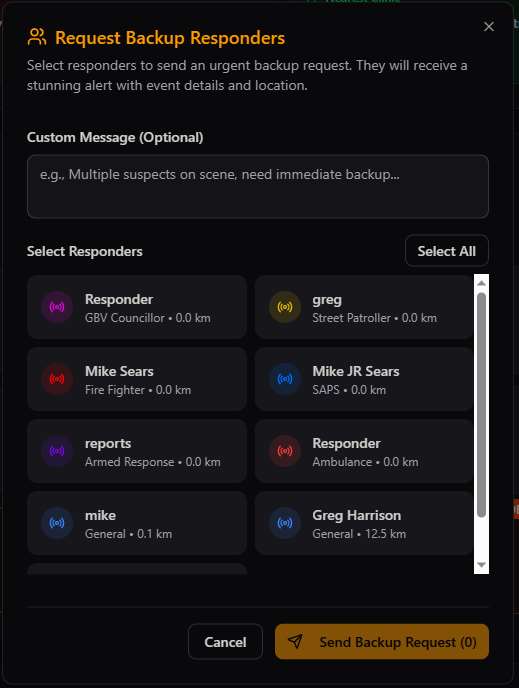
Escalation without re-dispatch. Requesting backup doesn't change the primary responder's assignment or the event's status — it simply extends the response, keeping the original assignment and the escalation both visible on the same event record.
Resolution & Reporting
Every event closes with a recorded reason — because "resolved" without context isn't a useful record.
Closing out an event is a deliberate step, not a default. Event Resolution requires the operator to record a resolution note and select a specific reason — distinguishing a genuine incident from a false alarm, a test, or accidental triggering. That distinction is what turns a stack of closed events into meaningful reporting data.

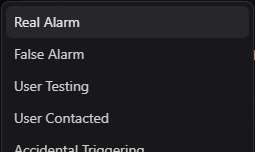

Resolution reasons
Resolution data is reporting data. Because every closed event carries a specific reason, management reporting can distinguish a spike in real alarms from a spike in false triggers at a specific site — turning day-to-day triage into a feedback loop for improving hardware placement, community education, and response protocols.
Complete platform. Every alert. No blind spots.
Event Processing — across all 9 of its integrated components — is the connective layer between every intake channel and every response resource on the platform. The underlying question it answers is simple: what happened, where, how urgent is it, who's available, and how did it end? Whether the volume is five events a day or five hundred, the same queue, the same detail view, and the same resolution workflow apply.