Every channel.
Every message.
One command center.
The AWE Initiative Communications module is the platform's outbound and real-time voice — push-to-talk radio channels, push notifications and broadcasts, community surveys, and role-based contact directories, all reachable from one admin surface.
Communications at a glance
Four surfaces that turn the platform from a monitoring tool into a two-way conversation with responders, users, and communities.
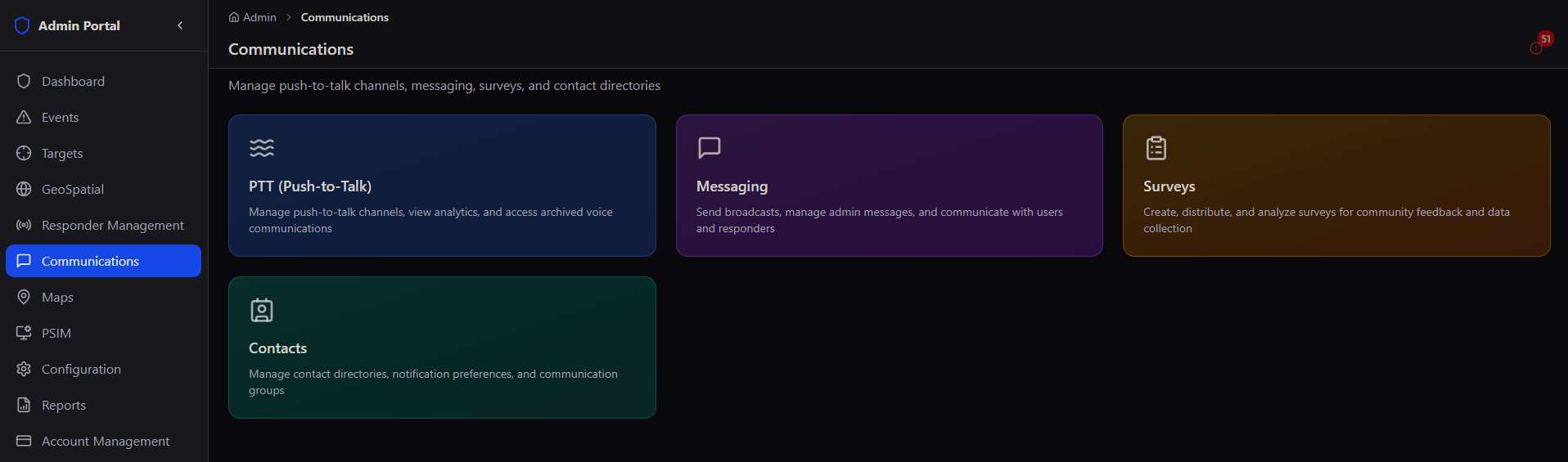
Every other module tells you what's happening. Communications is where you act on it — key a radio channel to coordinate a live response, push a broadcast to every user in a community, run a survey to gauge sentiment on a budget decision, or find the one named contact who owns a category of complaint in a specific ward.
Two directions of communication, one module. PTT and Messaging push information out — live voice or push notifications. Surveys and Contacts pull information in — structured feedback and the named people responsible for acting on it. Together they close the loop that Event Processing and Responder Management open.
Push-to-Talk
Real-time voice channels for responders and admins — live radio, usage analytics, and a searchable recording archive.
PTT gives the platform a radio layer alongside its data layer. Channels can be created per event, per team, or as standing community channels; every transmission is recorded automatically and surfaces in both the live channel view and the searchable Archive.
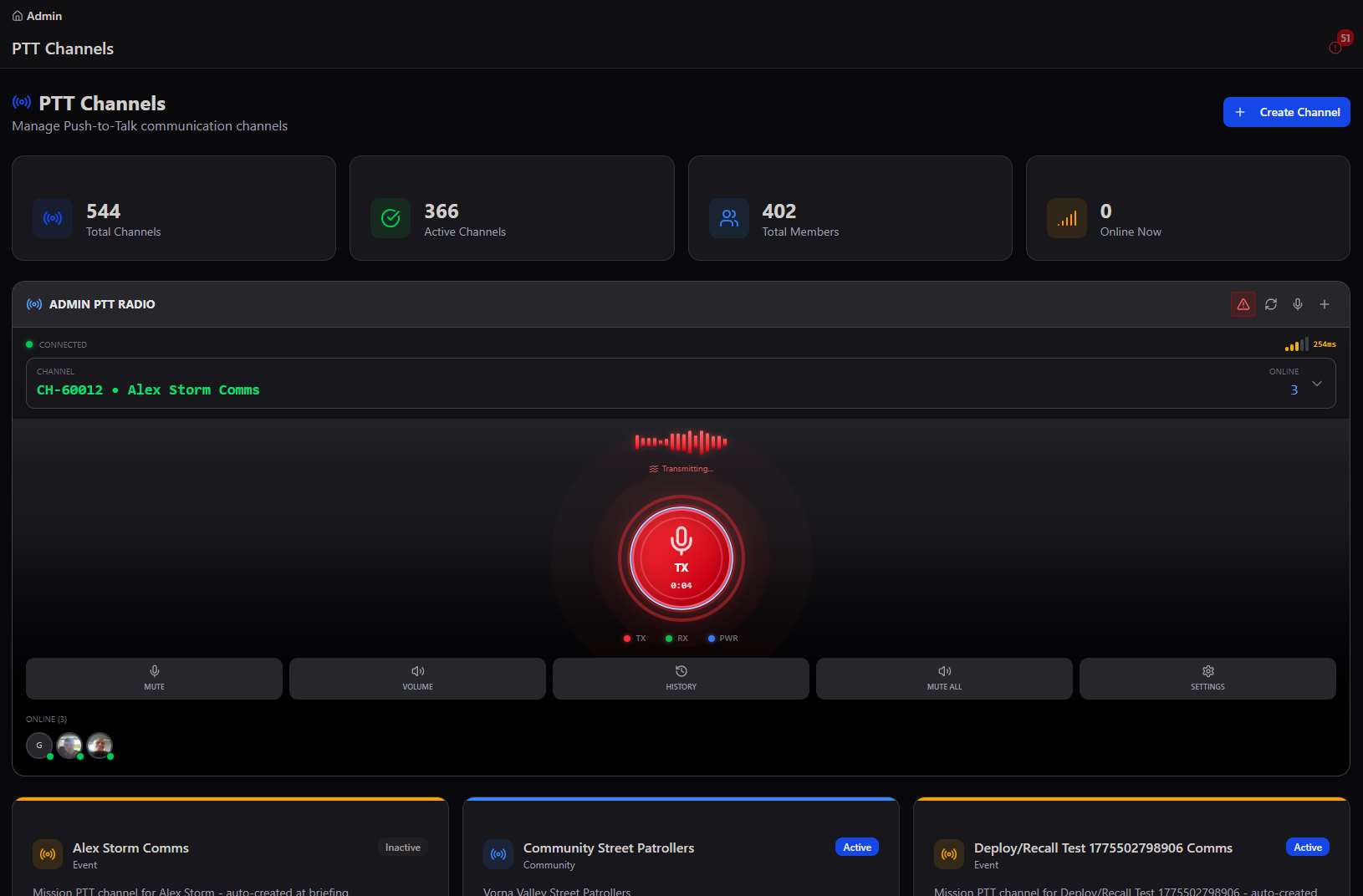
Talking on a channel
The Admin PTT Radio panel is a live radio built into the browser — join a channel, see who else is online, and press-to-transmit with real-time signal, latency, and online-member indicators.
Not just monitoring — participating. An admin can key into any channel and talk directly to responders in the field, the same way a dispatcher would key a physical radio, without leaving the admin console.
Creating a channel
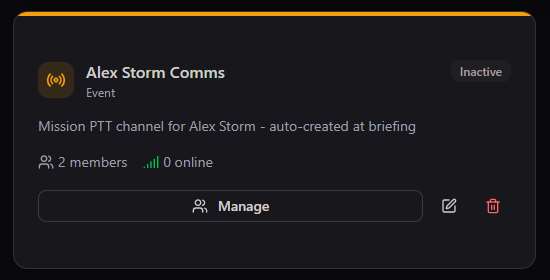
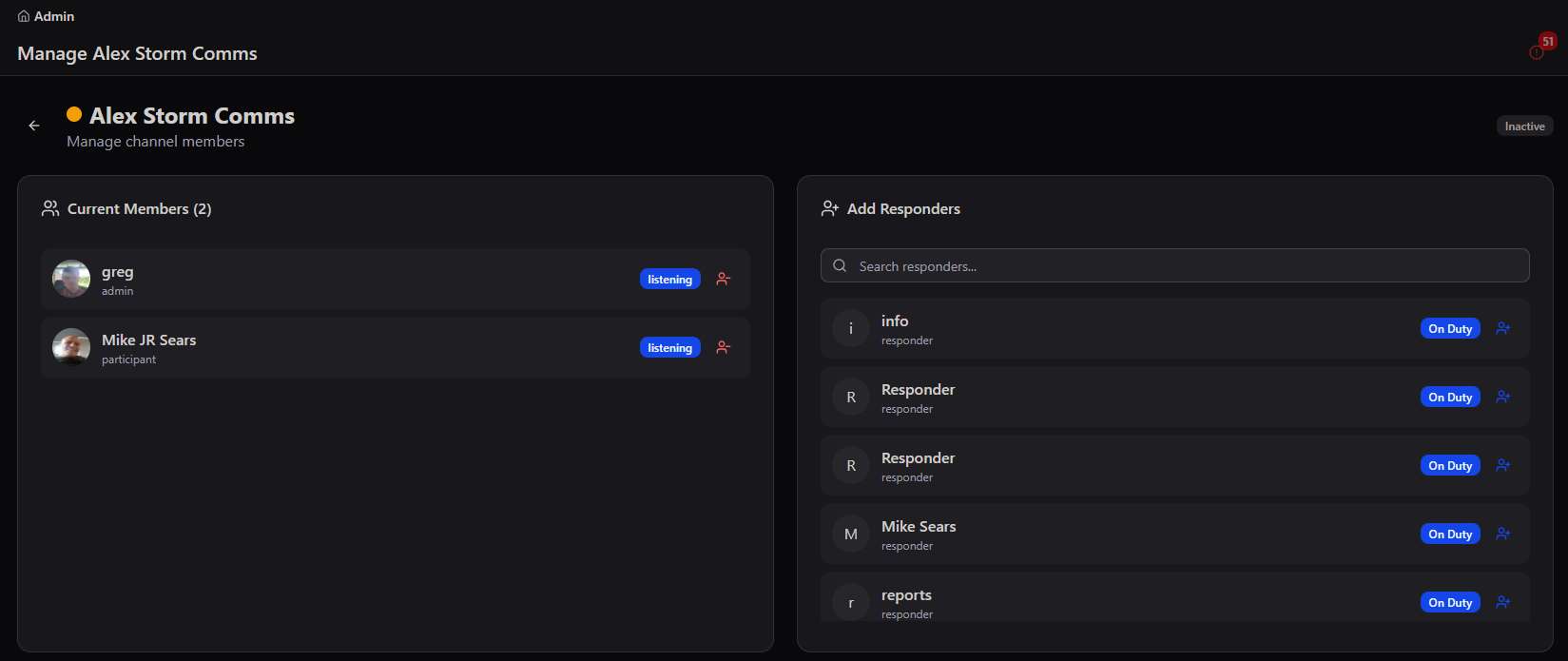
Every channel gets a name, description, type, color, and participant cap, with the option to keep it persistent after all members leave — useful for standing team or community channels rather than one-off event channels.
Usage analytics
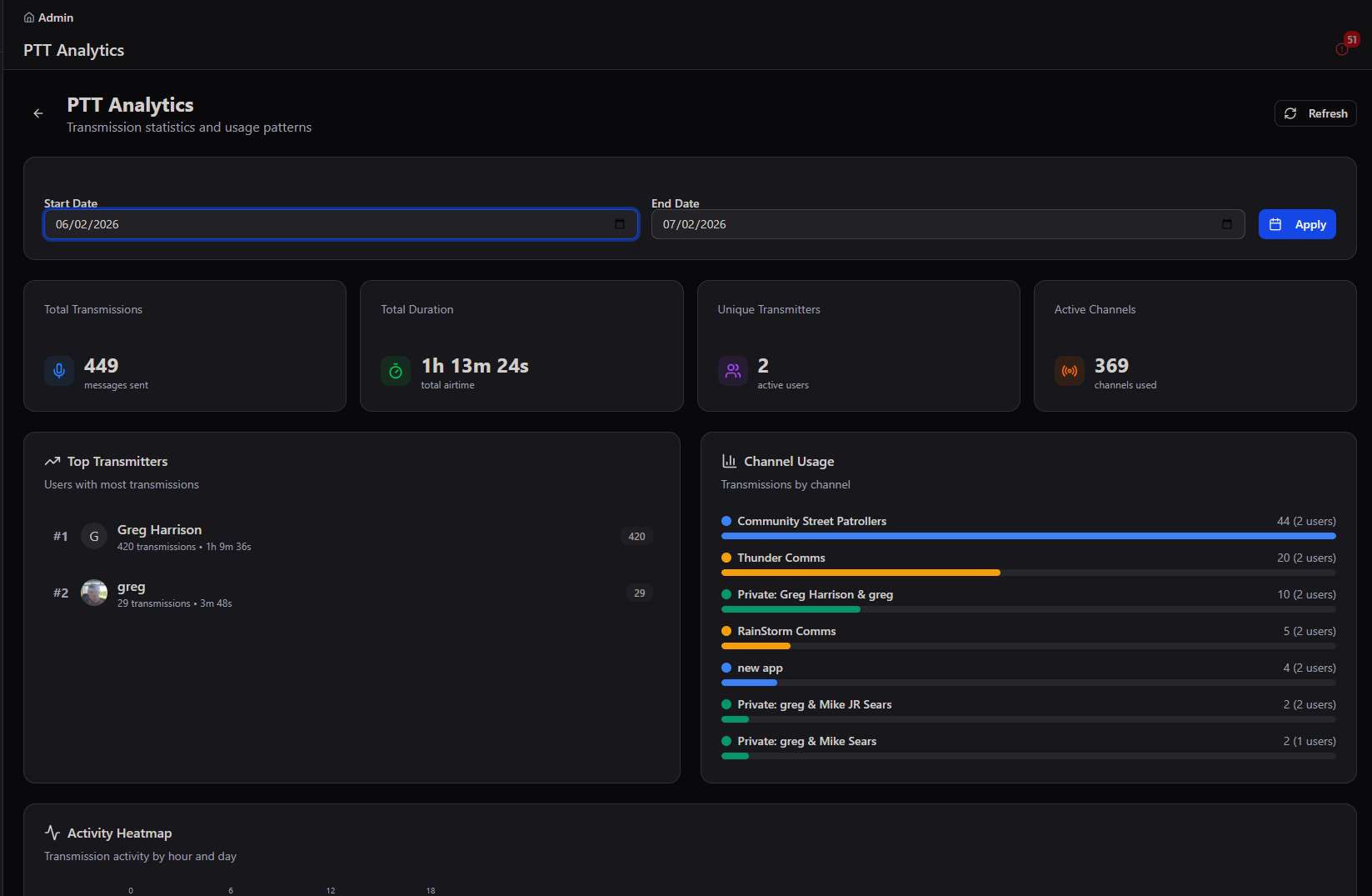
PTT Analytics turns raw transmissions into usage patterns — total transmissions and airtime over a date range, top transmitters, per-channel usage breakdown, and an activity heatmap by hour and day.
Recording archive
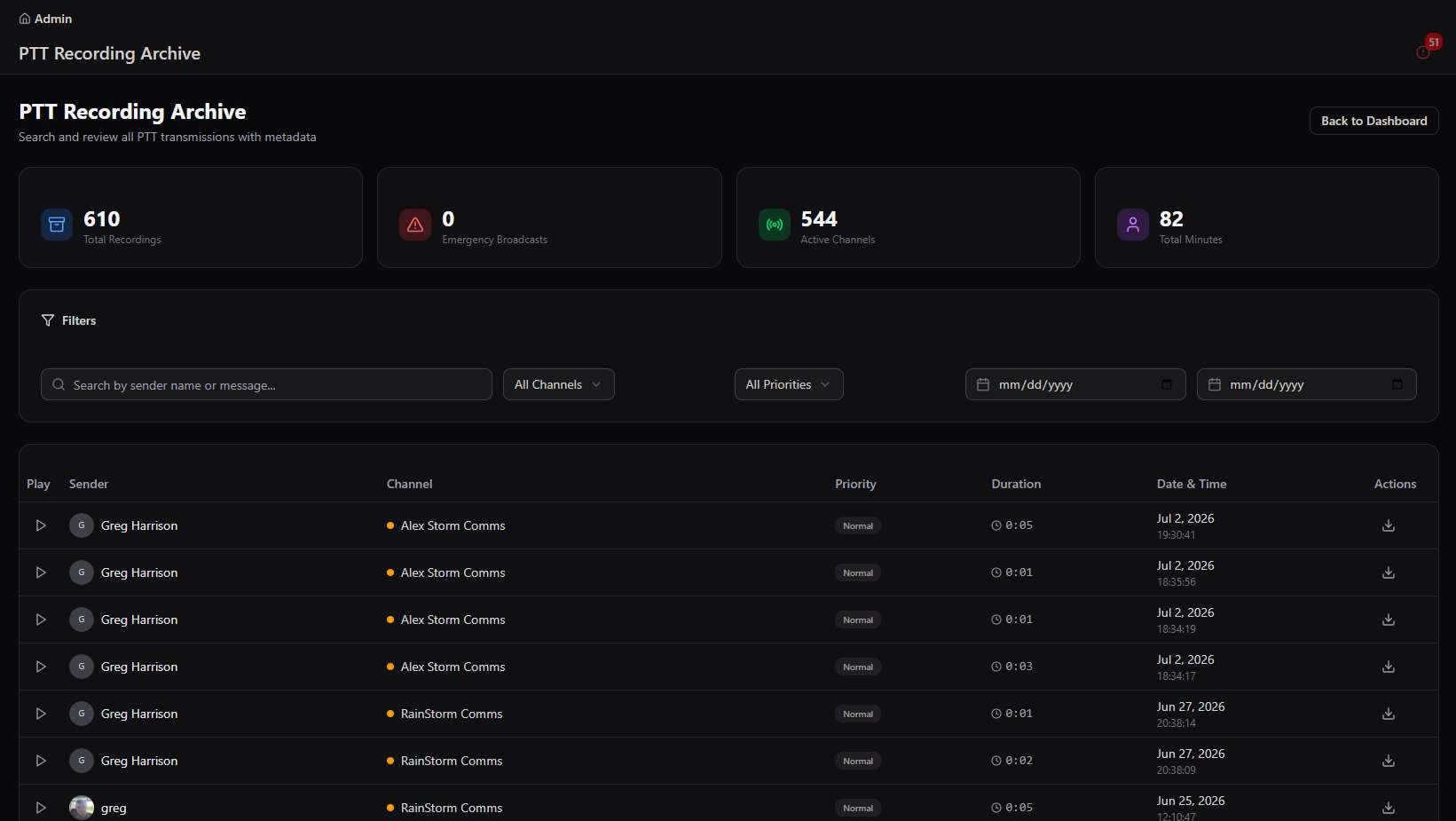
Every transmission — routine or emergency — is retained in the PTT Recording Archive, filterable by sender, channel, priority, and date range, with inline playback and download on every row.
Messaging
Push notifications to users and responders — composed fresh, built from a reusable template, or triggered automatically by an event.
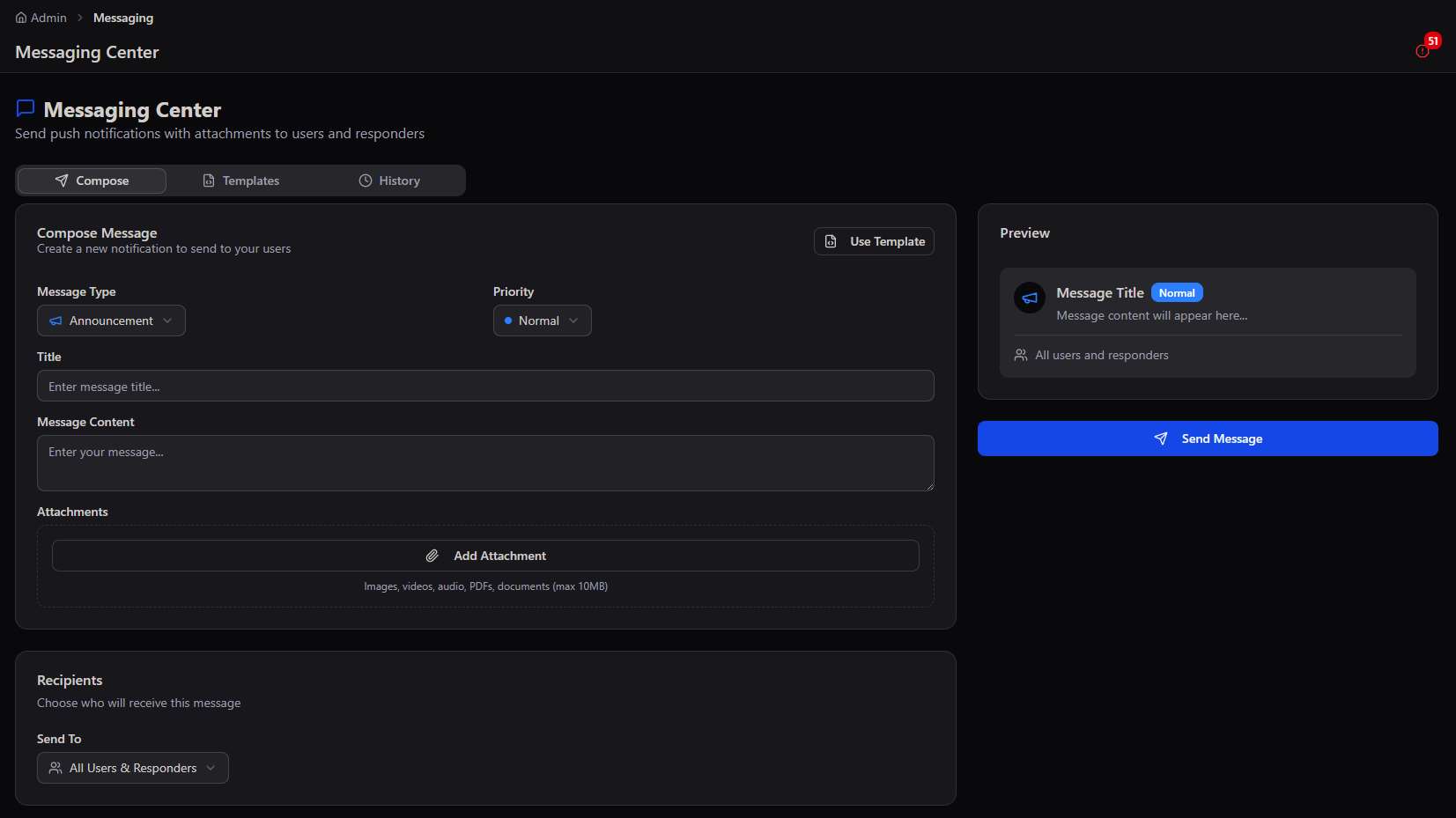
The Messaging Center sends interactive push notifications with attachments to any slice of the user base — everyone, a single community, an individual, or all responders — and keeps a full record of what went out and to whom.
Message type and priority
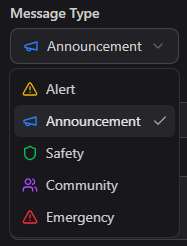
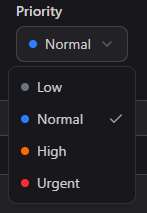
Every message is classed by type — Alert, Announcement, Safety, Community, or Emergency — and priority, from Low to Urgent, both of which drive how prominently it surfaces to the recipient.
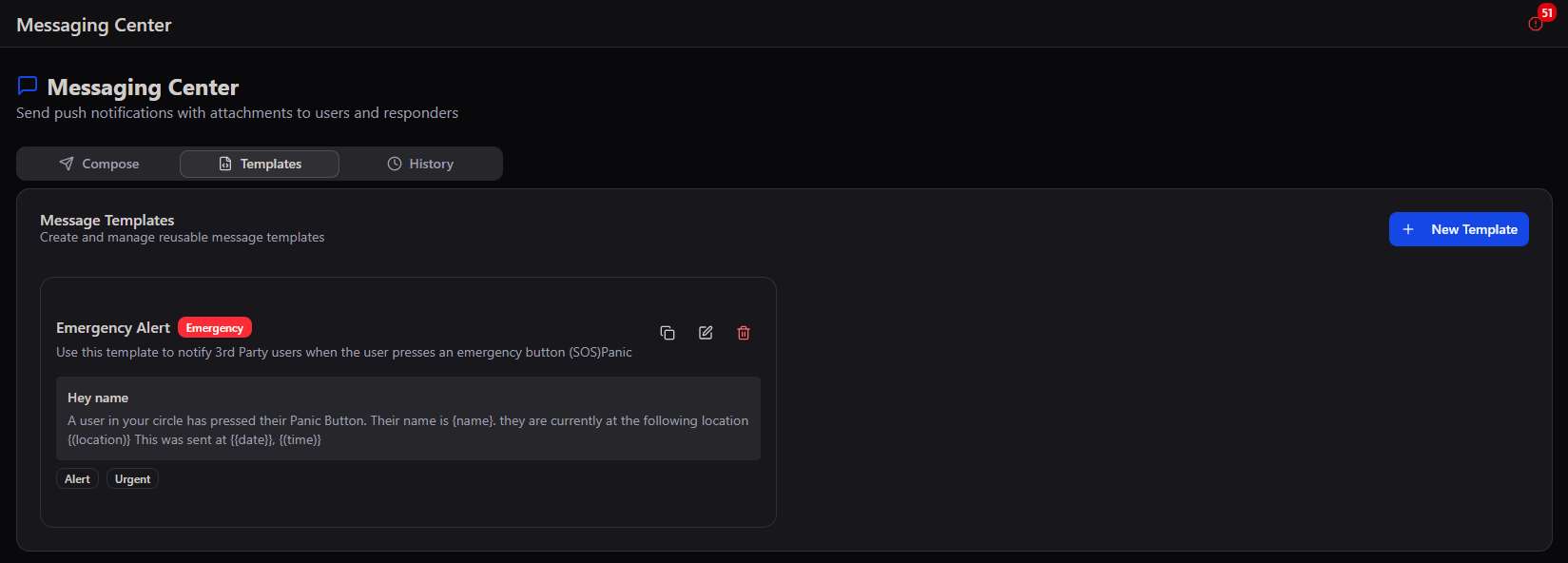
Templates
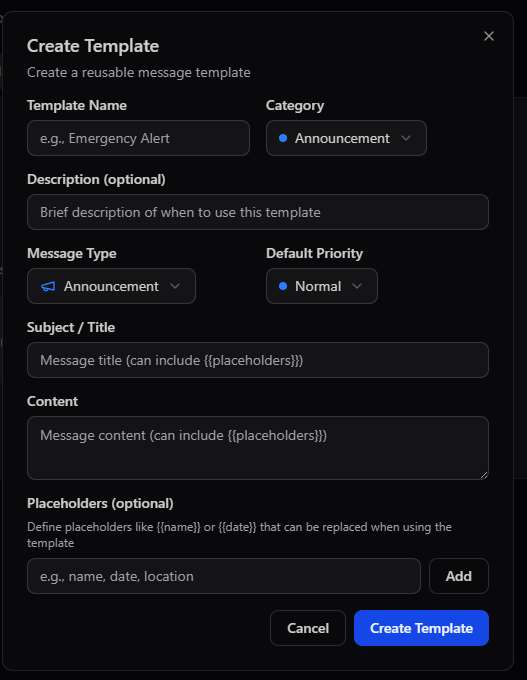
Recurring messages — like the Emergency Alert sent when a user presses their panic button — are saved as templates with named placeholders ({name}, {location}, {date}) that get filled in automatically each time the template fires.
Delivery history
History records every message sent — including ones triggered automatically from other modules, like patrol reminders and classified event alerts pulled in from monitored sources — with its priority, audience, and recipient count.
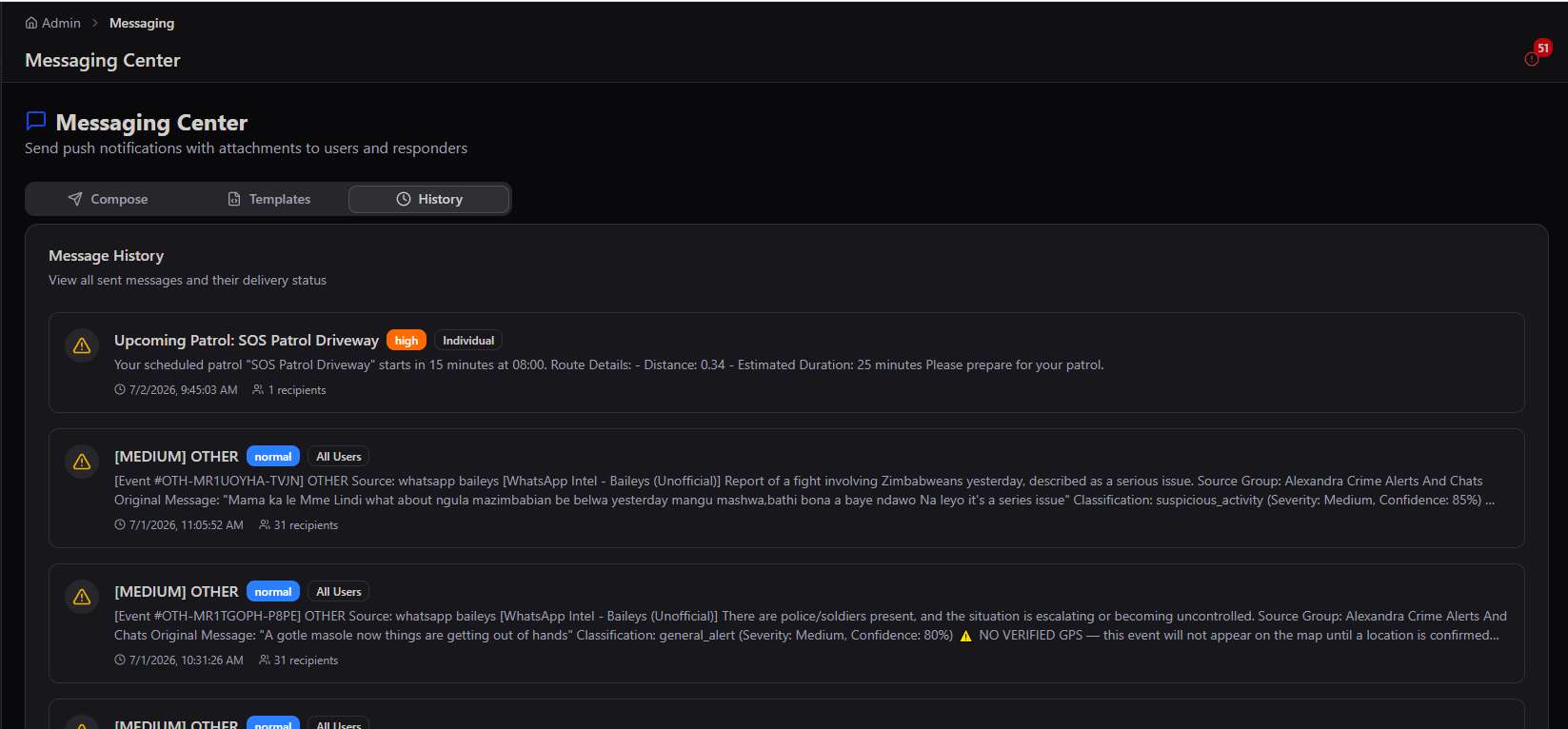
Where automated alerts land. Classified events from monitored channels (like WhatsApp intelligence sources) and system-generated reminders (like upcoming patrol notices) both flow into Message History alongside manually composed messages — Messaging is the single outbound record for everything the platform tells its users.
Surveys
Create, distribute, and analyze structured feedback — from a single budget-priority question to full multi-question assessments.
Survey Management gives admins a way to ask communities and responders structured questions, rather than only broadcasting at them. Every survey tracks response counts and completion rate from creation through distribution to results.
Building a survey
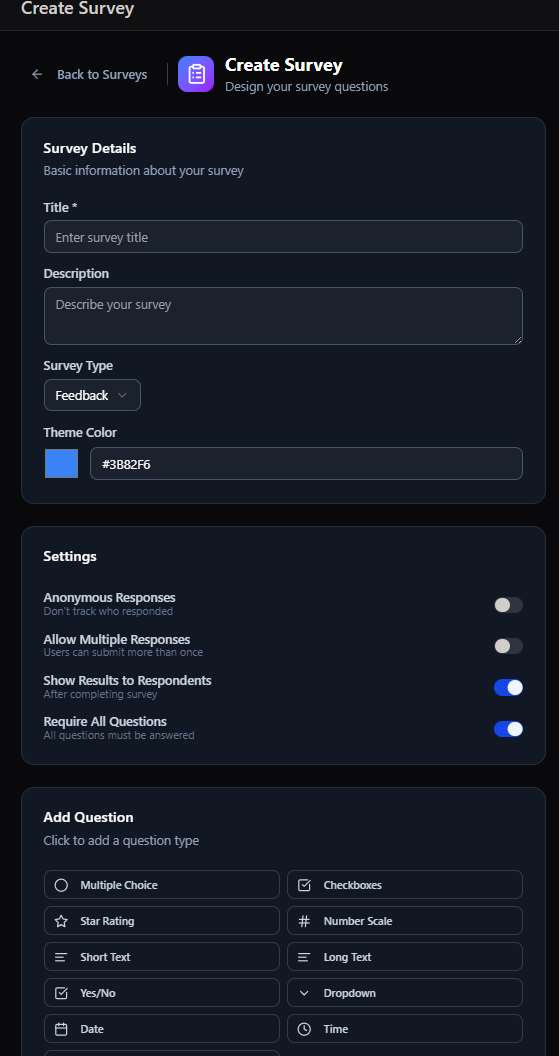
Set the survey's title, description, type, and theme color, then configure response rules — anonymous responses, multiple submissions, showing results to respondents, and requiring every question answered — before adding questions from ten supported types.
Distributing a survey
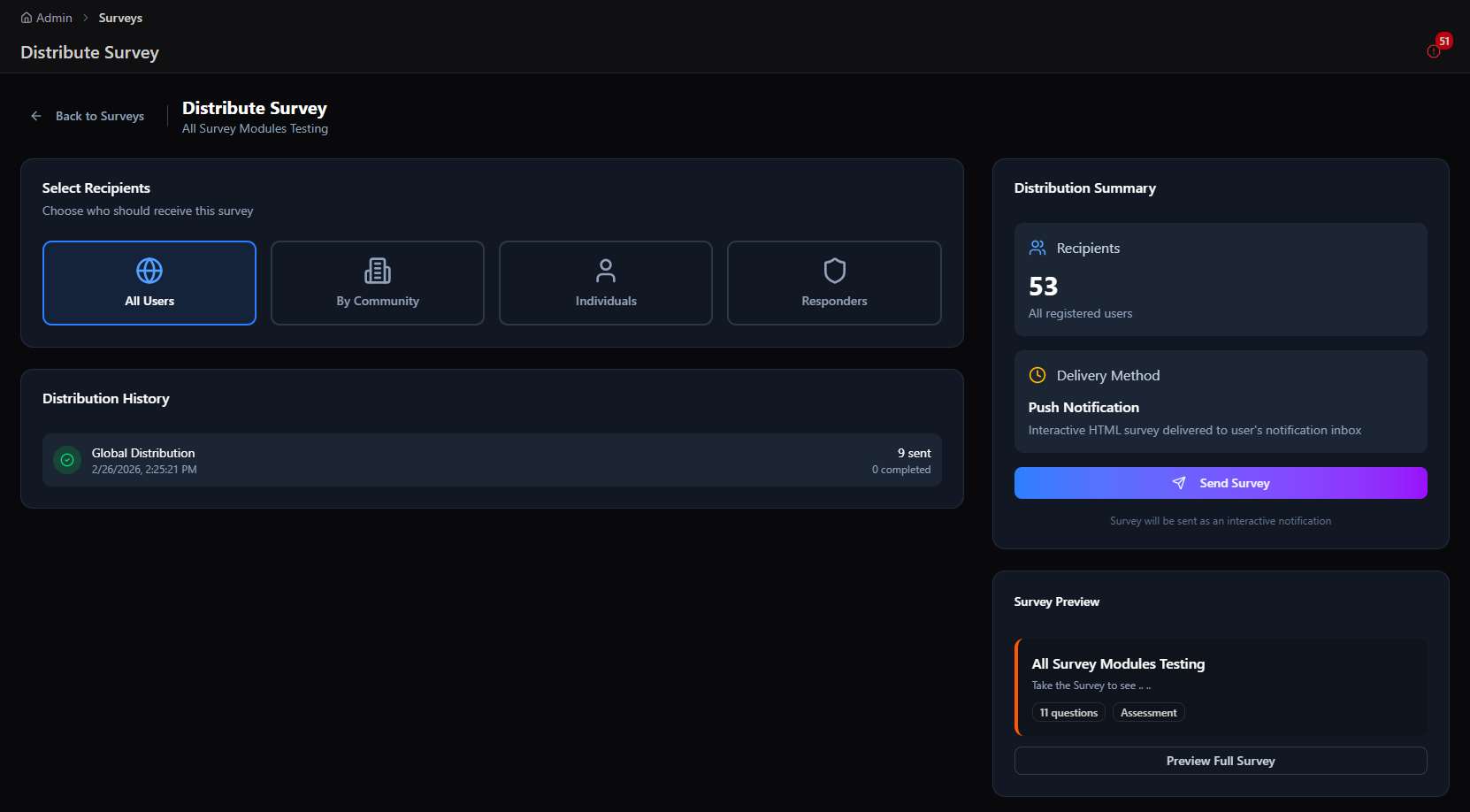
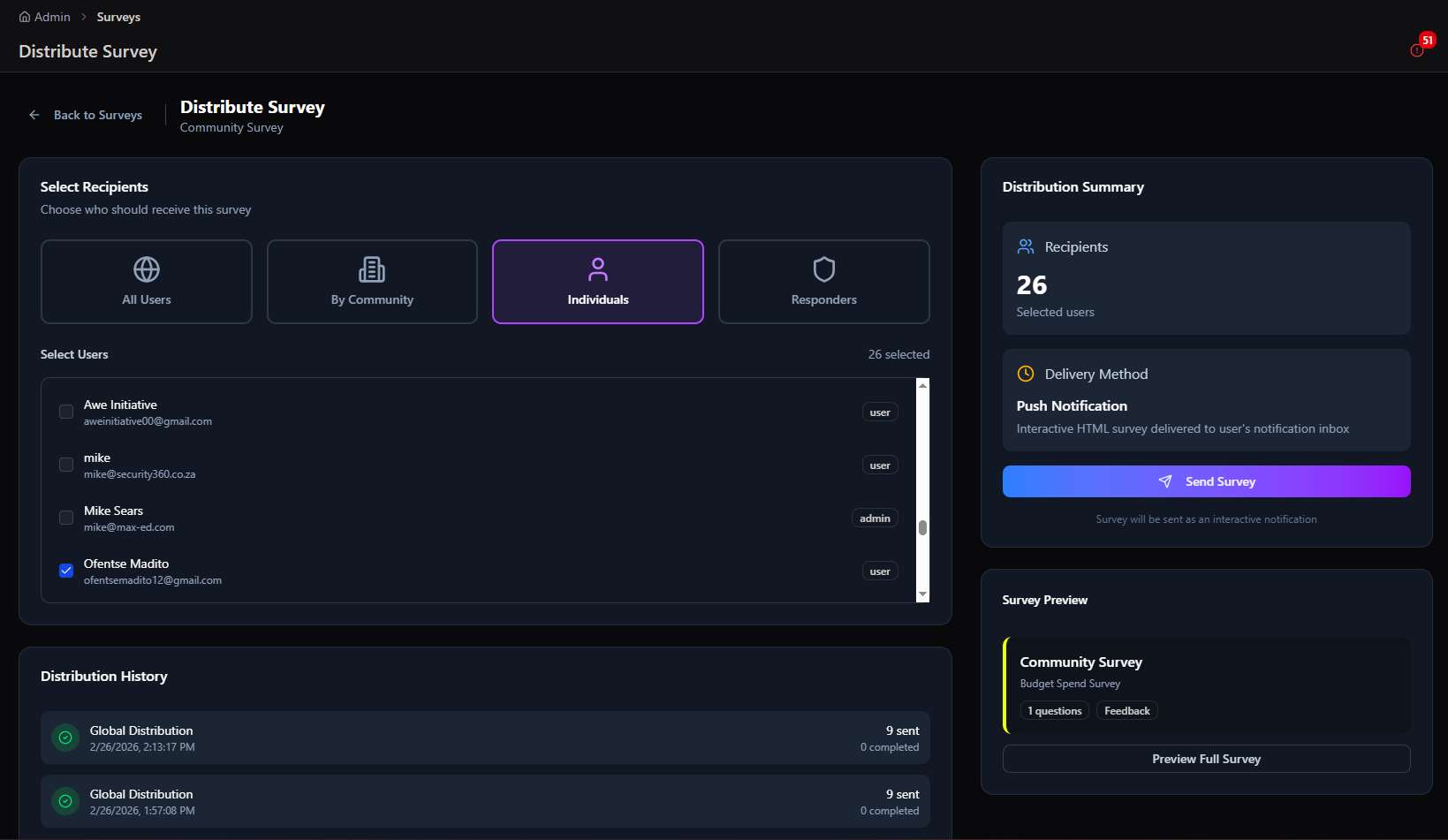
Choose the audience — All Users, By Community, Individuals, or Responders — and the survey goes out as an interactive push notification. Individual targeting supports searching and multi-selecting specific users by name or email.
Reading the results
Results break down per question with response counts and percentages — immediately visible without exporting to a spreadsheet, though export is available for deeper analysis.
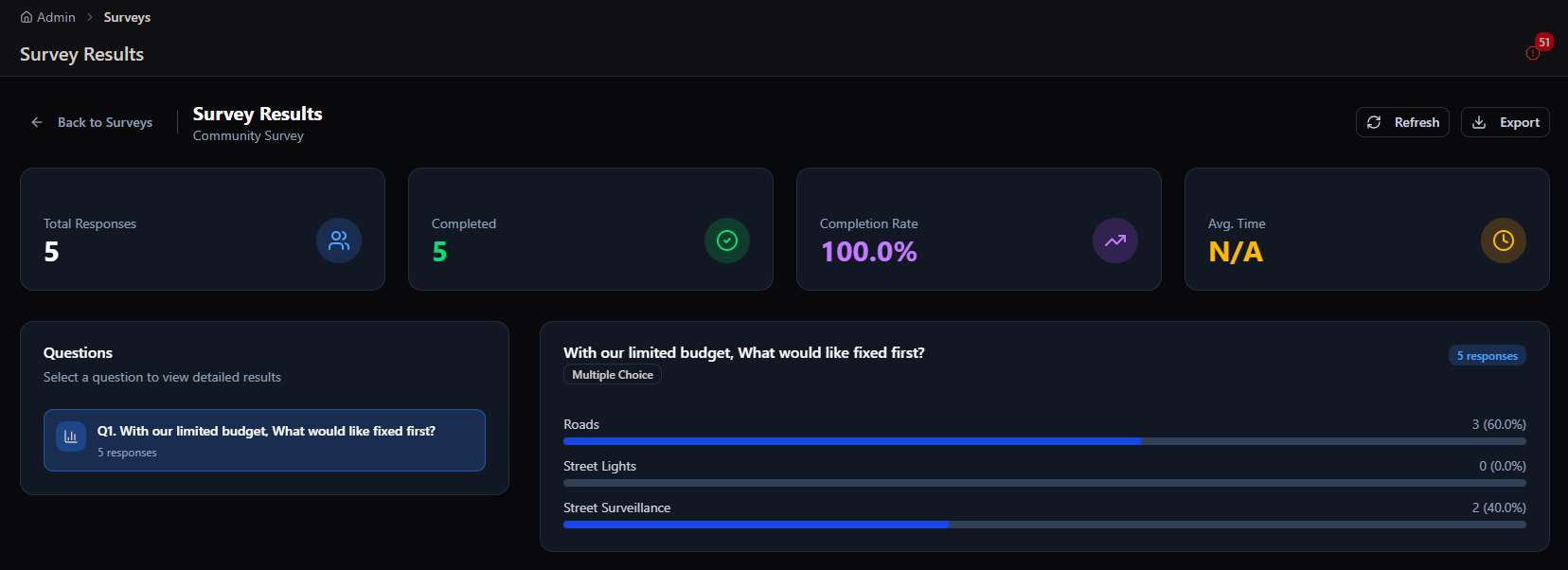
From question to decision. The Community Survey's budget-priority question is a working example: an admin doesn't have to guess whether a community wants roads or street lighting fixed first — they ask, and the answer is 60% Roads within a handful of responses.
Contacts
Role-based contact directories per community, with a full leadership organogram from Chairman down to Category Heads.
Contact Management answers a different question than Messaging or PTT: not "how do we reach everyone," but "who, specifically, is responsible for this." Each community carries its own structured leadership directory, so a drug-dealing report and a noise complaint route to two different, named people.

Selecting a community
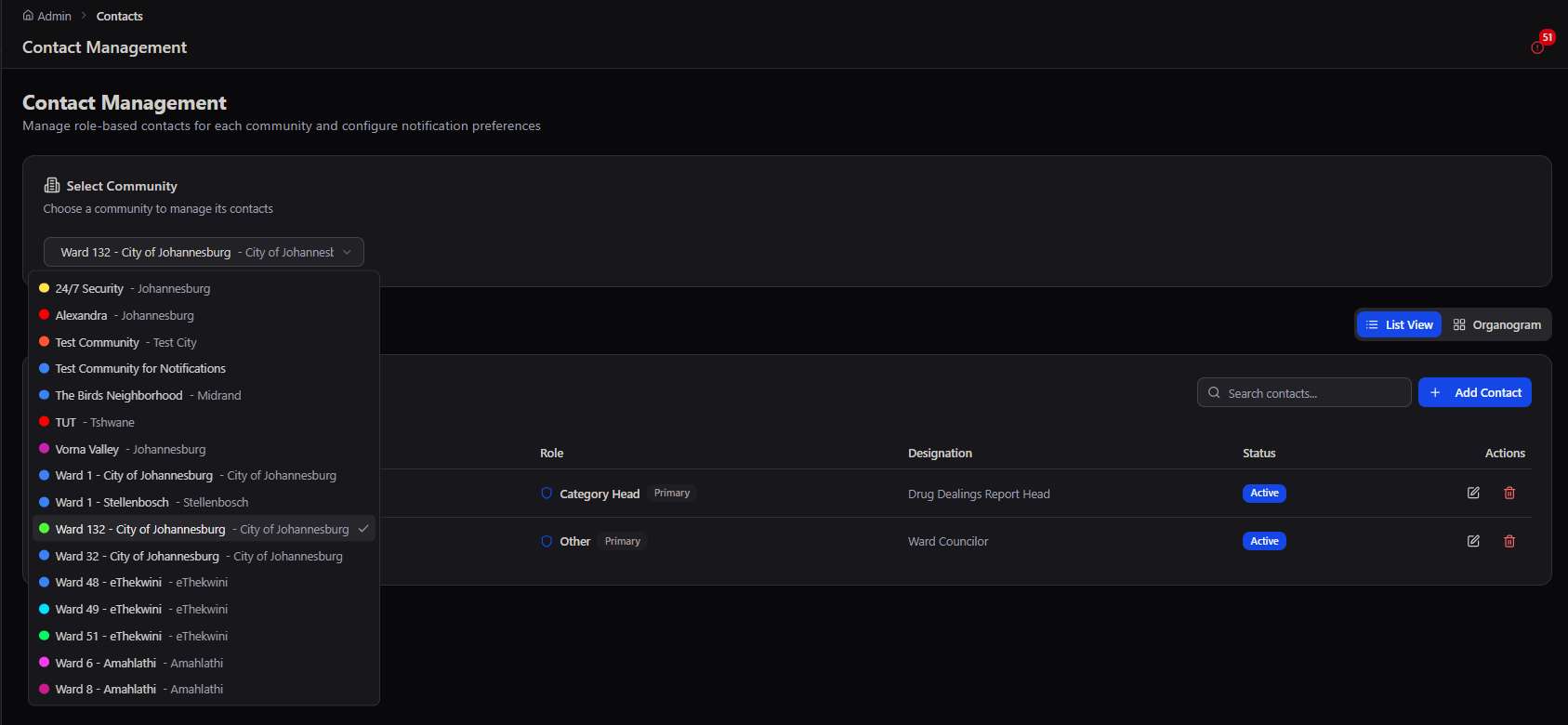
The community picker spans everything from small named neighborhoods to full municipal wards, each color-coded and searchable — the same community records used across Targets and GeoSpatial.
The organogram
Switching to Organogram view lays the same community's contacts out as a full leadership structure — Leadership, Executive Committee, Operations, and twelve Category Heads (Crime, Smart Monitoring, Service Issues, GBV, Illegal Dumping, Road Maintenance, Noise Violations, and more) — with filled roles highlighted and vacancies clearly marked.
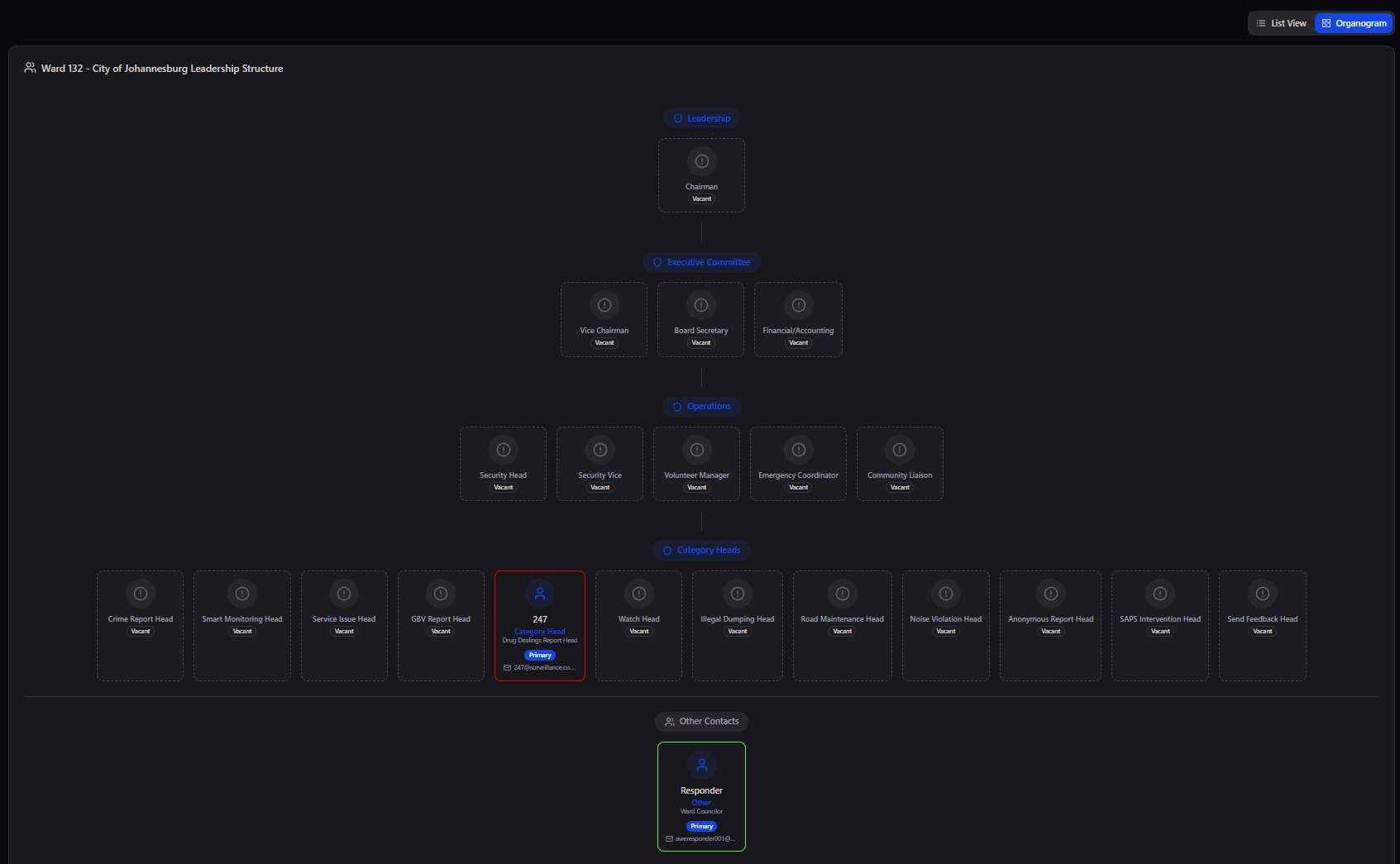
Vacancies are visible by design. Ward 132's organogram shows most roles marked Vacant rather than hiding them — an admin can see at a glance exactly which categories of report currently have nobody assigned to receive them.
Complete module. Every voice, connected.
Across Push-to-Talk, Messaging, Surveys, and Contacts, Communications is where the platform stops being one-directional. Event Processing and GeoSpatial tell you what's happening and where; Communications is how you talk back — to a responder mid-incident, to a whole community, or to the one named person who owns the problem.